Doing this for the first time? The source of truth is 1-Start-Here.pdf at the root of the folder you downloaded — the 15-minute written orientation. This booklet is the visual version of that guide: the same install and setup process, with a screenshot for most steps, plus a dedicated section on the additional value you can get from the system. Hand it to your IT person or print it once for the team.
Print this booklet. Open in Chrome or Safari. Cmd+P (Mac) or Ctrl+P (Win) → Destination: Save as PDFPaper: US LetterMargins: NoneBackground graphics: ON. Spread this to your team or hand to your IT person.
TENEXITY · AI FOR WHOLESALE DISTRIBUTION

Installation
Booklet

Everything you need to install CoWork for Distributors and run your first setup session. Walks step-by-step through the install, the company-level setup, and what to do once the system knows your business. Built for non-technical readers.

Claude Cowork — fine-tuned for wholesale distributors
CoWork for Distributors
Visual version of 1-Start-Here.pdf
Booklet 2026.06.01 · For scaffold v2.6
tenexity.ai/distributors
Tenexity
Distribution-specific intelligence, pre-built

Built specifically for HVAC and plumbing wholesale.

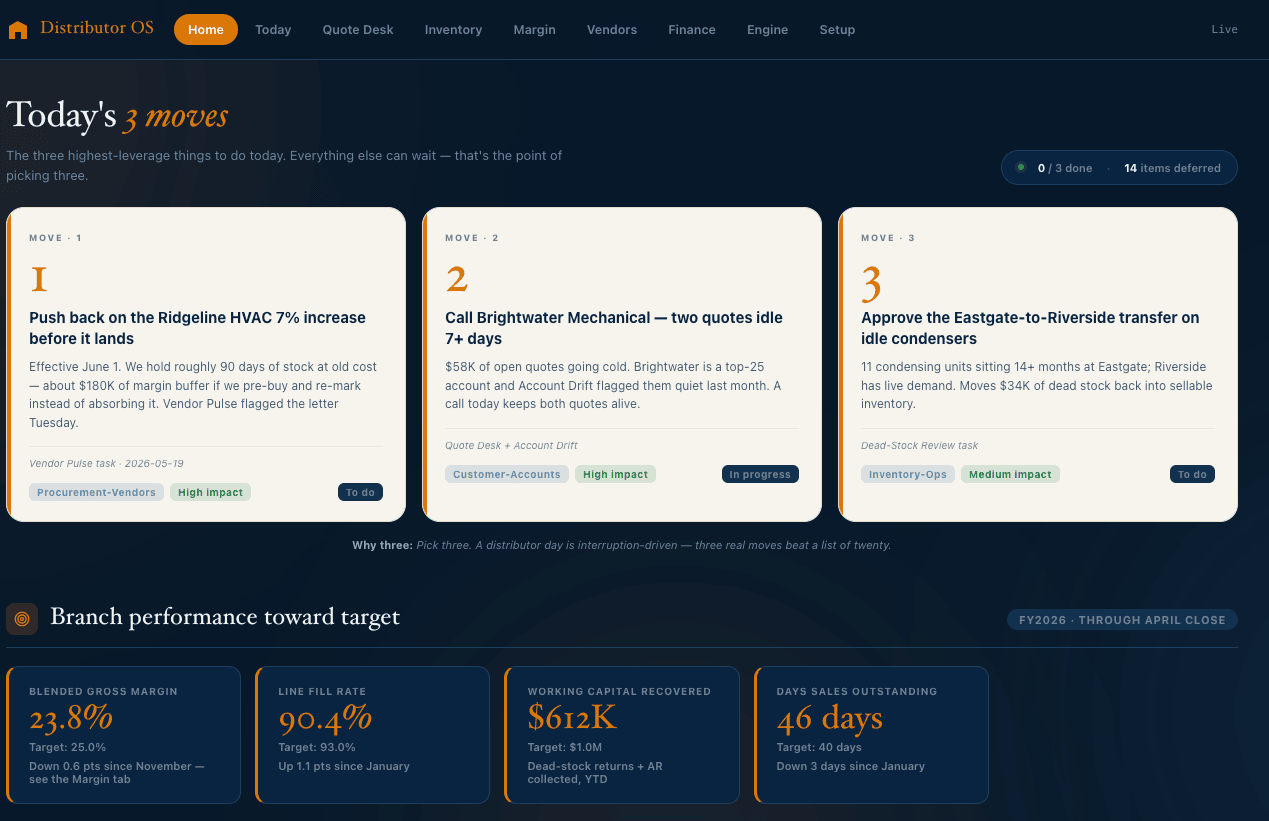
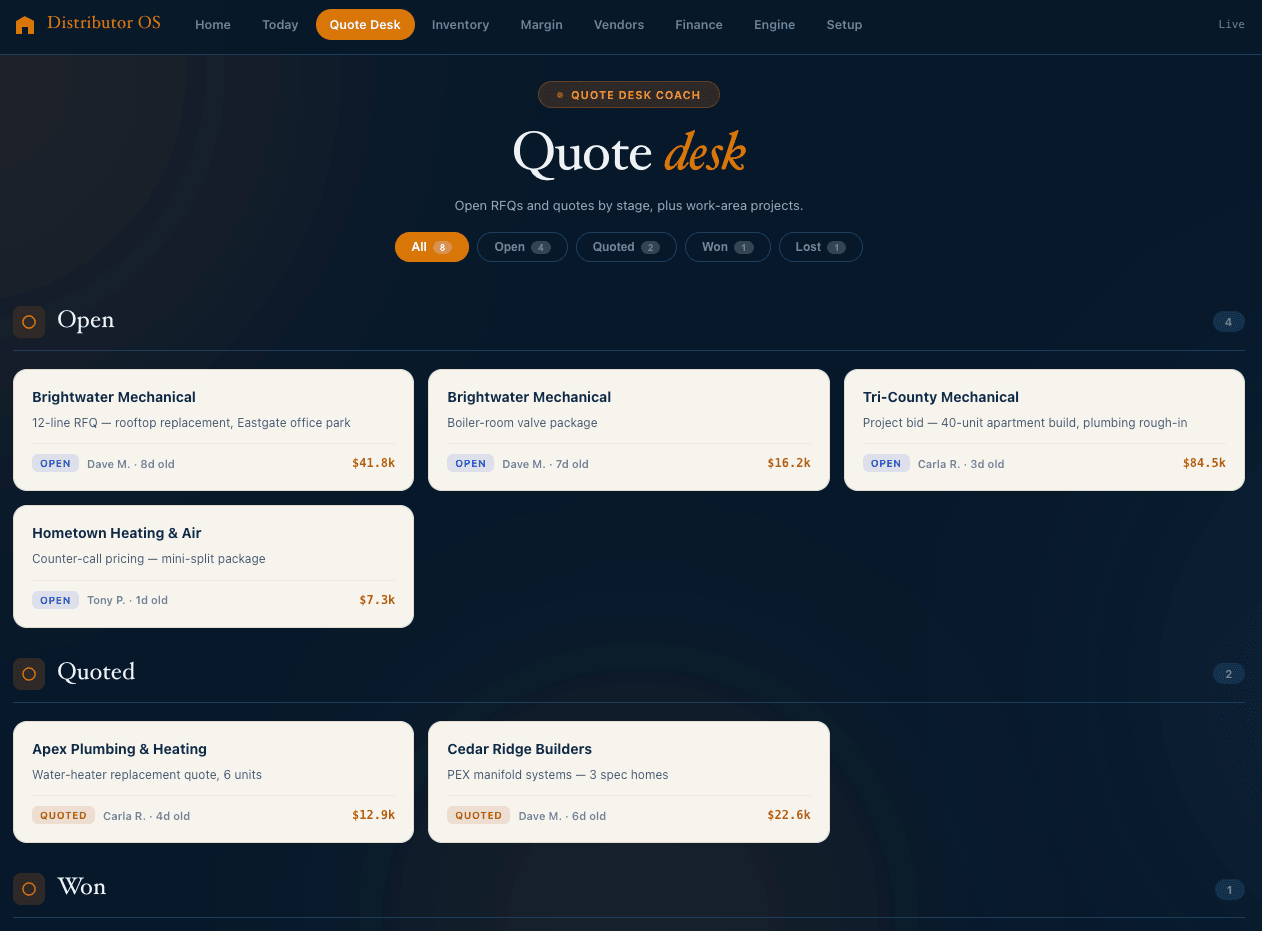
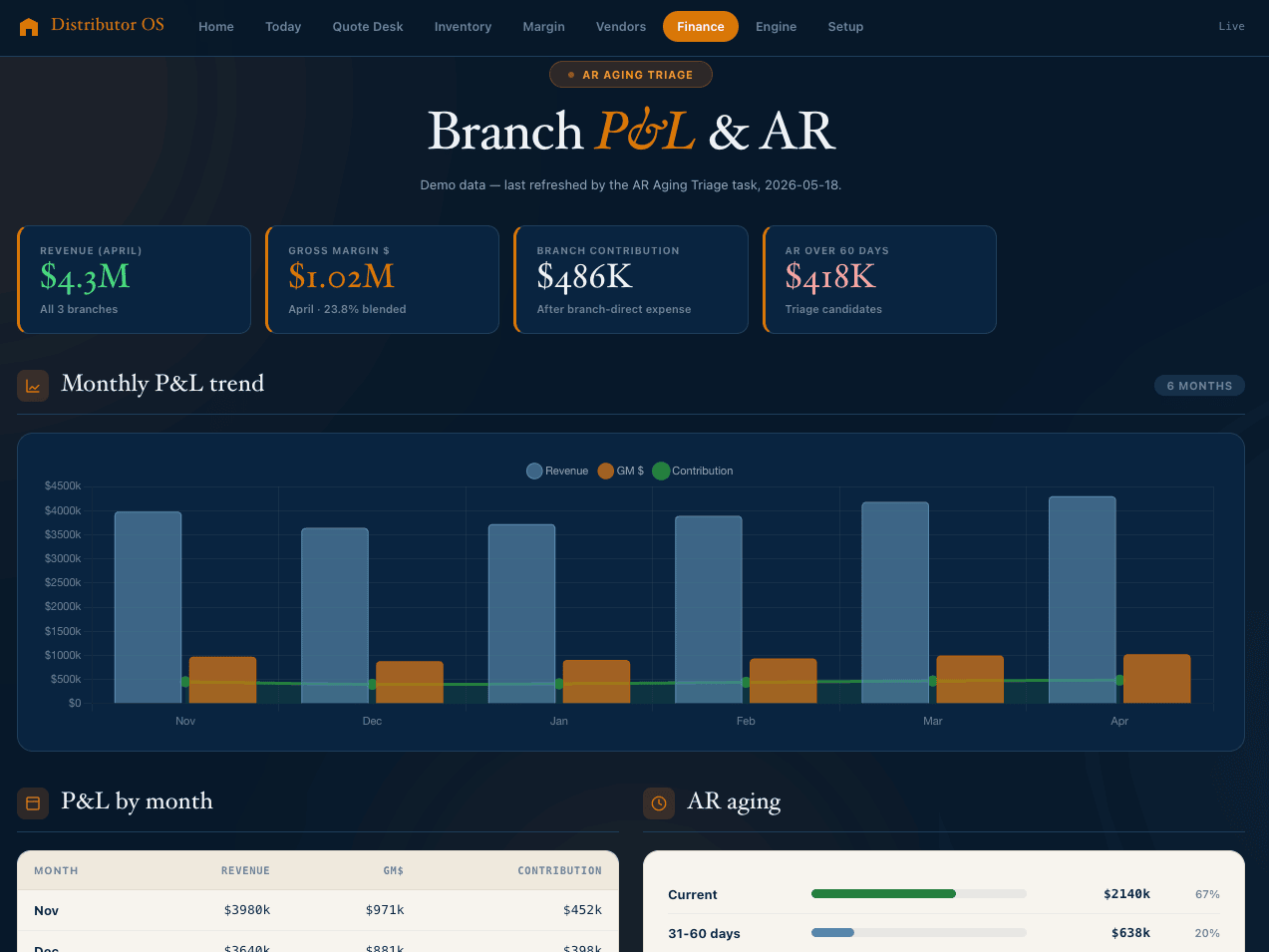
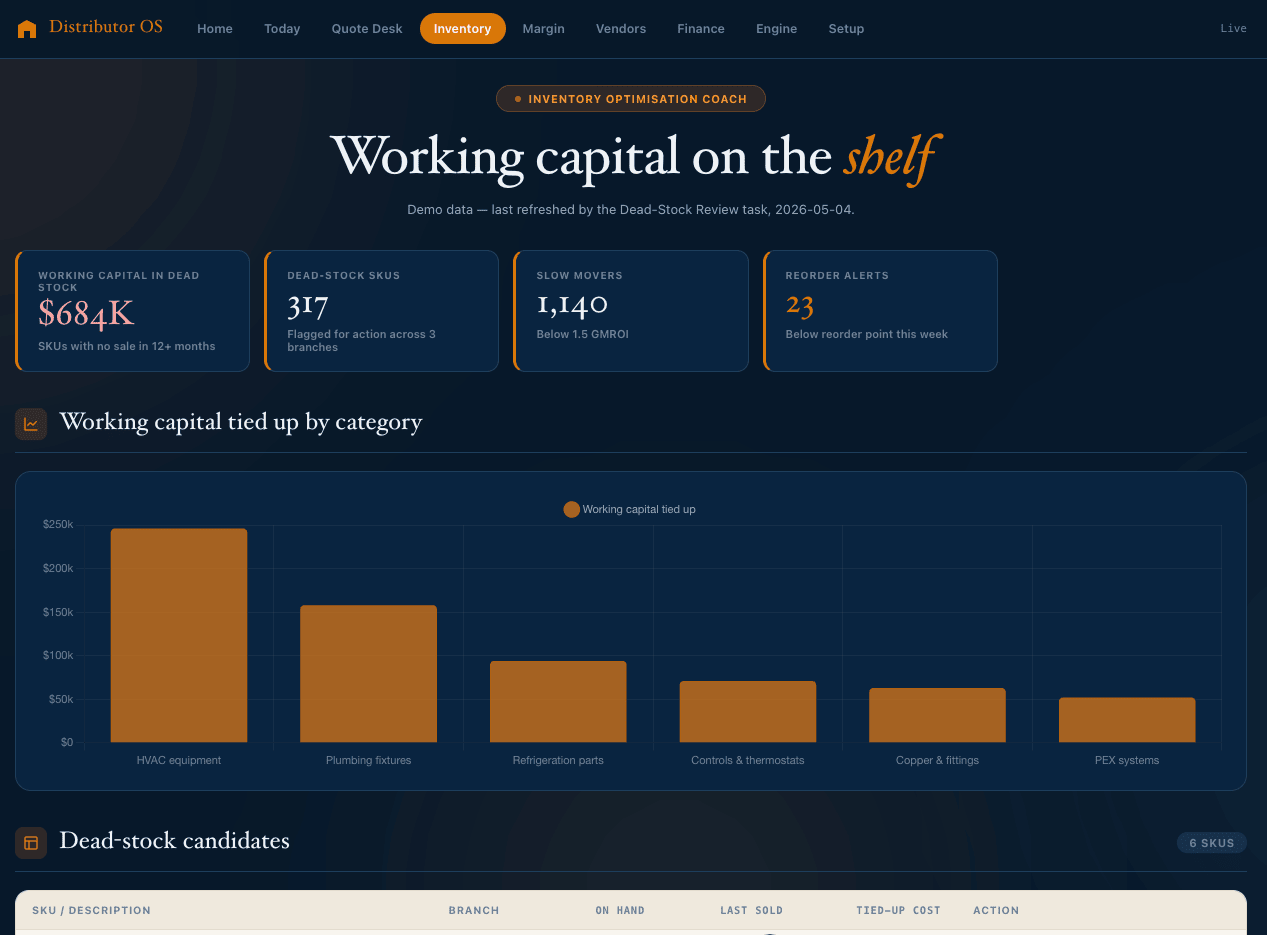
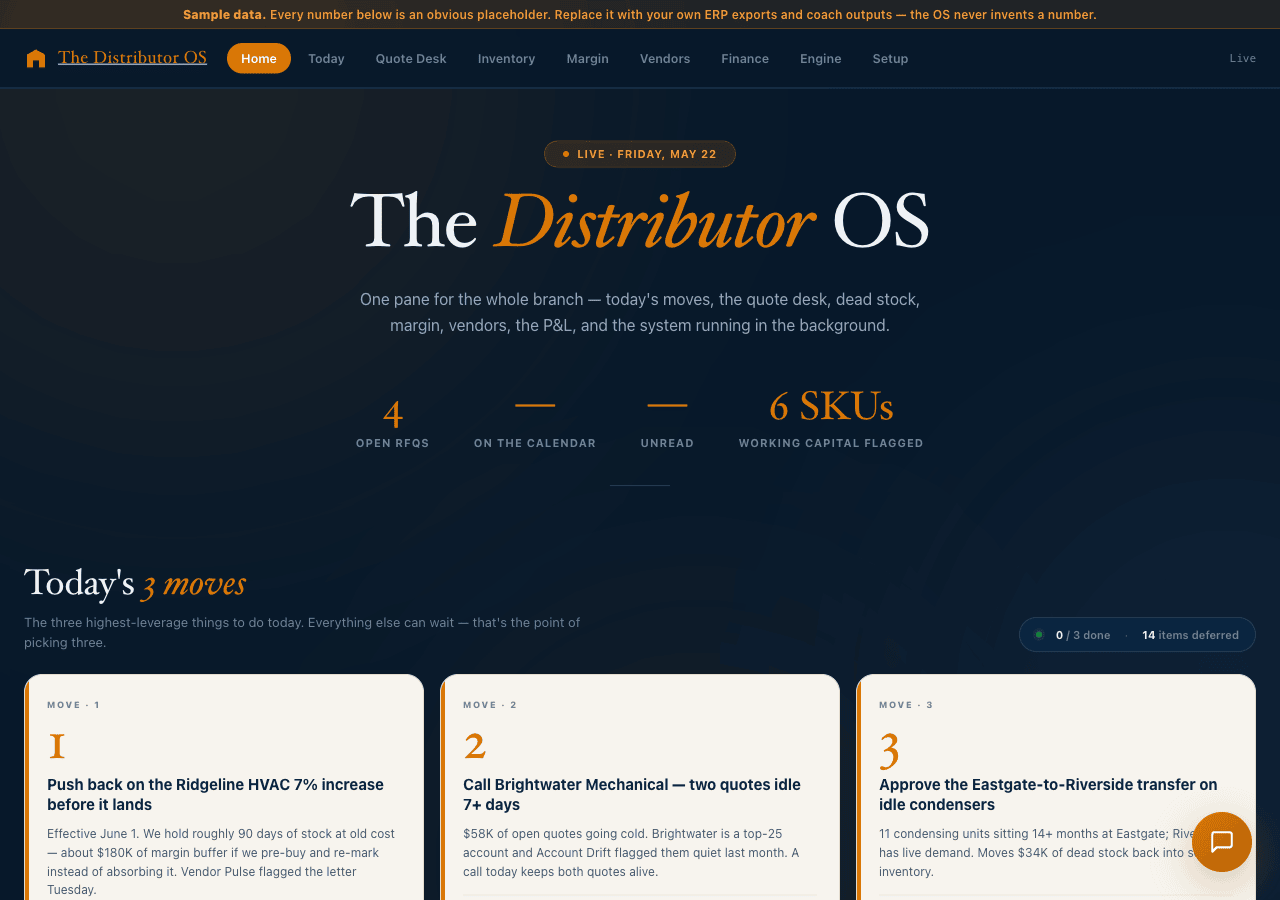
The Distributor OS dashboard and five AI-coaches come with the package — trained in HVAC and plumbing wholesale on day one.

Distributor OS — Home tab
HOME
Distributor OS — Quote Desk tab
QUOTE DESK
Distributor OS — Finance tab
FINANCE
Distributor OS — Inventory tab
INVENTORY
What's inside this booklet

A complete map of your install journey.

Three parts, about 35 minutes total. Take it at your own pace — the system waits between steps. Print this booklet and tick steps off as you go.

PART 1
Install — get the system running
Five steps. About 15 minutes. From downloaded folder to a live workspace ready to set up.
p. 6
PART 2
Set up — teach the system about your business
A guided conversation with Claude. The admin runs this once for the company (~15 min), then each employee runs their own profile setup (~5 min). 9 steps + intro.
p. 15
PART 3
Use — what to do next
The First Week Guide, the monthly System Review, and how to add more skills. Multi-employee setup notes. Troubleshooting.
p. 25
The scaffold is free. No subscription, no login, no data leaving your computer. Yours to keep, yours to modify, yours to hand to your team.

What you'll need before you start

01
A Claude account. Pro plan minimum ($20/month). Sign up at claude.ai. Max plan if you'll run long setup sessions.
02
The Claude desktop app (with Anthropic's CoWork capabilities built in). $0 to try, $20/mo for Claude Pro or Claude Team Edition. Download from claude.com/download — Mac or Windows. The scaffold and the distributor customizations only run inside the Claude desktop app's CoWork environment, not in the Claude web app.
03
The scaffold zip from tenexity.ai/distributors (sign-in required, free). Step 0 below walks you through the download and unzip — about 2 minutes.
04
About 15 minutes for install, plus 5–15 minutes for setup. Stop anywhere; the system picks up where you left off.
Setup model

For the best onboarding results, select Claude Opus as your model in CoWork before starting setup. It's the most capable and will set up your files with more depth. The system review and AR triage scheduled tasks also run on Opus by default. Daily briefings and quick consolidations run cheaper on Sonnet or Haiku — those defaults are baked in.

Find your job. This is what changes.

What you'll get.

Before the install steps, find your role below. This is what the system does for the job you actually do — not someday, not after a six-month project. Most of it lands in the first week.

Inside sales · counter sales

15 min
Quotes, down from 50 minutes. The quote drafts in your voice with your data — you review and send. On a 20-quote day, ~11 hours of desk capacity back.
2–5 pts
Margin protected. Guardrails catch below-floor pricing before the quote leaves — the points that slip when the counter is three deep.
20–30%
Of lost quotes were winnable. Every loss classified in 60 seconds — price, availability, lead time, spec. You see the pattern instead of shrugging.

Controller · AR · credit

$150–600K
Rebate leakage recaptured a year. On $30M of vendor purchases, 0.5–2% sits in missed claims and accrual drift. The reconciliation surfaces it program by program.
5–10 days
Off DSO. Weekly AR triage compresses the cycle. On $50M revenue, five days is roughly $685K of working capital freed — and it stays freed.
30 min
Month-end close prep, down from half a day. The first three days of every close stop being context-gathering.

Customer support · key accounts

90 min
QBR prep, down from 6 hours. Quarterly reviews stop slipping when spring season hits. Across 25 accounts, ~400 hours a year recovered.
60–90 days
Of early warning. The monthly drift check flags accounts going quiet before the revenue drop shows on a report.
1 voice
Every account email reads as the same company — even when the rep on the keyboard changes.
The operations roles — and the bottom line

What you'll get, continued.

Branch managers

3–5 pts
Of fill rate. Systematic back-order triage and inter-branch transfers. On a $20M branch, 87% to 91% is roughly $400–600K of recovered annual sales.
90 sec
The 7:45 a.m. scramble, gone. The Morning Briefing assembles fill rate, back-orders, allocation status, and today's RFQs before your first coffee.
1–3%
Phantom write-downs avoided. ABC cycle counts on a schedule, drift caught automatically — recovered at year-end instead of written off.

Purchasing · inventory specialists

$250K–3M
Found on the first run. The first dead-stock analysis surfaces cash on shelves in 25 minutes, action list ready the same day.
30–40%
Less dead stock by year-end. Monthly review plus the vendor-return and transfer loops. On a $10M inventory, $300K–1.2M back to cash.
Seasonal
Reorder points that move with the calendar. Climate-zone-aware builds — so "out of compressors in July" stops happening.

GM · owner

2–5 pts
Margin on targeted categories. Pass-through discipline, contract audit, override drift contained. On $50M at 22% gross, 3 points is $1.5M a year.
1 cadence
The whole org on one operating rhythm. Daily briefings, weekly pulse, monthly review — you stop being the bottleneck for "what's going on."
15 years
A successor-ready business. Tribal knowledge written down. When the 22-year purchasing manager retires, the knowledge stays.
What it adds up to

For a $50M-revenue, three-branch distributor running every cadence, a conservative first-year estimate:

~$3.9M
Recurring annual lift — margin, fill rate, rebate capture, retention.
$1.2–2.7M
One-time working capital freed — dead stock plus DSO.

Built from HARDI and ASA benchmarks. Smaller distributors see smaller absolute numbers; even the conservative version clears any reasonable cost of getting started by a wide margin.

Part 1

Install the
system.

Six short steps to go from a fresh download to a workspace that's ready for setup. None of this requires any code, any account creation beyond Claude itself, or any technical knowledge. Total time: about 17 minutes including the wait for the Claude desktop app to download.

Steps in Part 1
  1. Download and unzip the scaffold
  2. Install the Claude desktop app
  3. Open the scaffold folder in CoWork
  4. Paste the global instructions into CoWork settings
  5. Install the bundled Setup Plugin (one drag-and-drop)
  6. Say the first words to Claude
0
Before you start — get the scaffold

Download and unzip the scaffold

Before the install, get the scaffold onto your machine. About two minutes start to finish.

Download

  1. Go to tenexity.ai/distributors.
  2. Sign in. If you don't have an account, create one — email and password, takes 30 seconds. The sign-in is how we make sure the scaffold lands with real distributors and gives you a path back to updates.
  3. Click Download the scaffold. The file you receive is CoWork-for-Distributors.zip — about 6 MB.
  4. Save it somewhere you can find again. The Downloads folder is fine for now.

Unzip it

  • Mac: Double-click the .zip file. A folder named CoWork-for-Distributors appears next to it.
  • Windows: Right-click the .zipExtract All… → pick a location → Extract.

Move the unzipped CoWork-for-Distributors folder into your Documents folder if it isn't already there. Anywhere works in principle, but Documents is the recommended default — Claude looks there first when you point it at a workspace in Step 3. You can delete the original .zip once the folder is unzipped.

Verify what you got

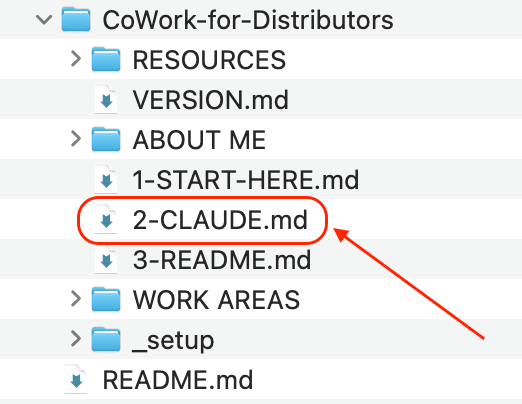
Open the CoWork-for-Distributors folder. At the top level you should see:

1-Start-Here.pdf
2-CLAUDE.md
VERSION.md
_setup/
ABOUT ME/
RESOURCES/
WORK AREAS/
KNOWLEDGE/

Your exact file structure may look different as updates to this system often create or remove some of the files. Your files may not look exactly as the image above, but they should look similar.

Don't rename or move anything

The folder structure is what makes the system work. The only files you ever touch by hand are inside ABOUT ME/ — and even those get filled in for you by the setup skills in Part 2.

1
First — get the platform running

Install the Claude desktop app

CoWork is the desktop application that runs Claude inside a folder-based workspace. It's a separate product from Claude itself — you'll need both.

Go to claude.com/download, install the Claude desktop app for Mac or Windows, and sign in with your Claude account. The CoWork capabilities this scaffold uses are built into the desktop app — they don't ship in the web version of Claude. If you don't have a Claude account yet, create one first at claude.ai.

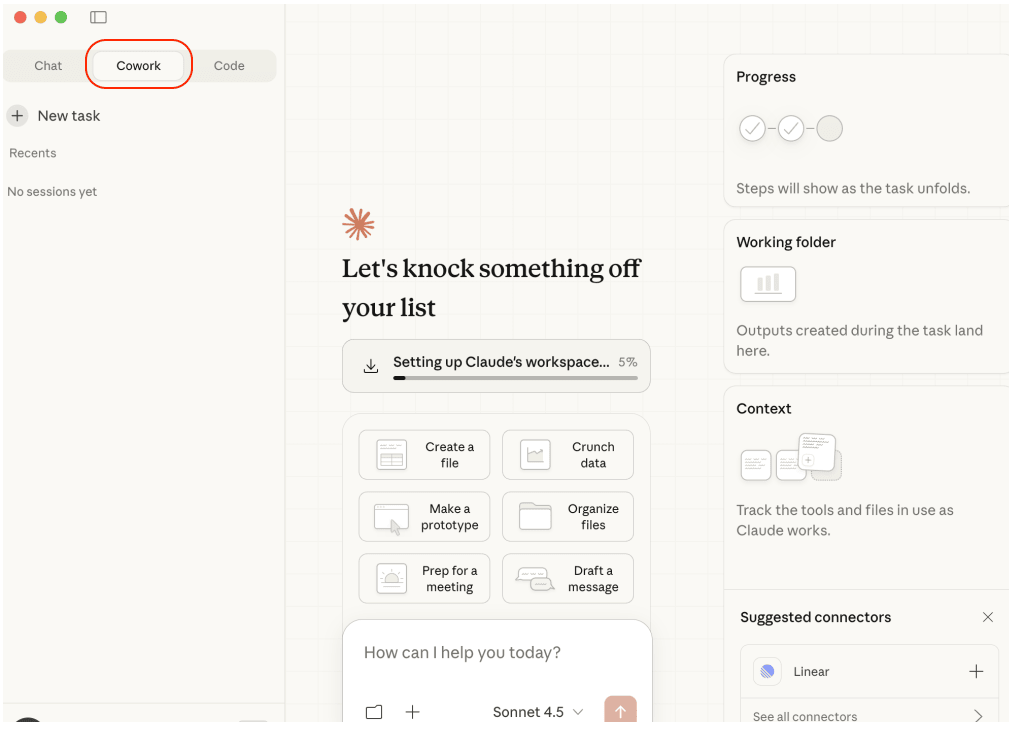
When you open the Claude desktop app for the first time, it asks you to sign in. Use the same email and password as your Claude account. Find the CoWork tab at the top left. Click it. That's it. The app is running.

The Claude desktop app showing the CoWork tab at the top left

The Claude desktop app — click the CoWork tab at the top left.

If you've used Claude before

Your existing Claude web conversations don't transfer into the desktop app's CoWork workspace. CoWork creates new conversations inside its own workspace structure, but you can still access your prior web conversations on claude.ai. Think of CoWork as a parallel space inside the Claude desktop app, not a replacement for Claude itself.

2
Teach Claude the house rules

Paste the global instructions

This is the step most people get tripped up on. It only takes 30 seconds, but it's the foundation everything else depends on.

Inside your CoWork-for-Distributors folder, open the file named 2-CLAUDE.md in any text editor (TextEdit on Mac, Notepad on Windows, or any modern editor).

Opening 2-CLAUDE.md in a text editor

Open 2-CLAUDE.md from the scaffold folder in any text editor.

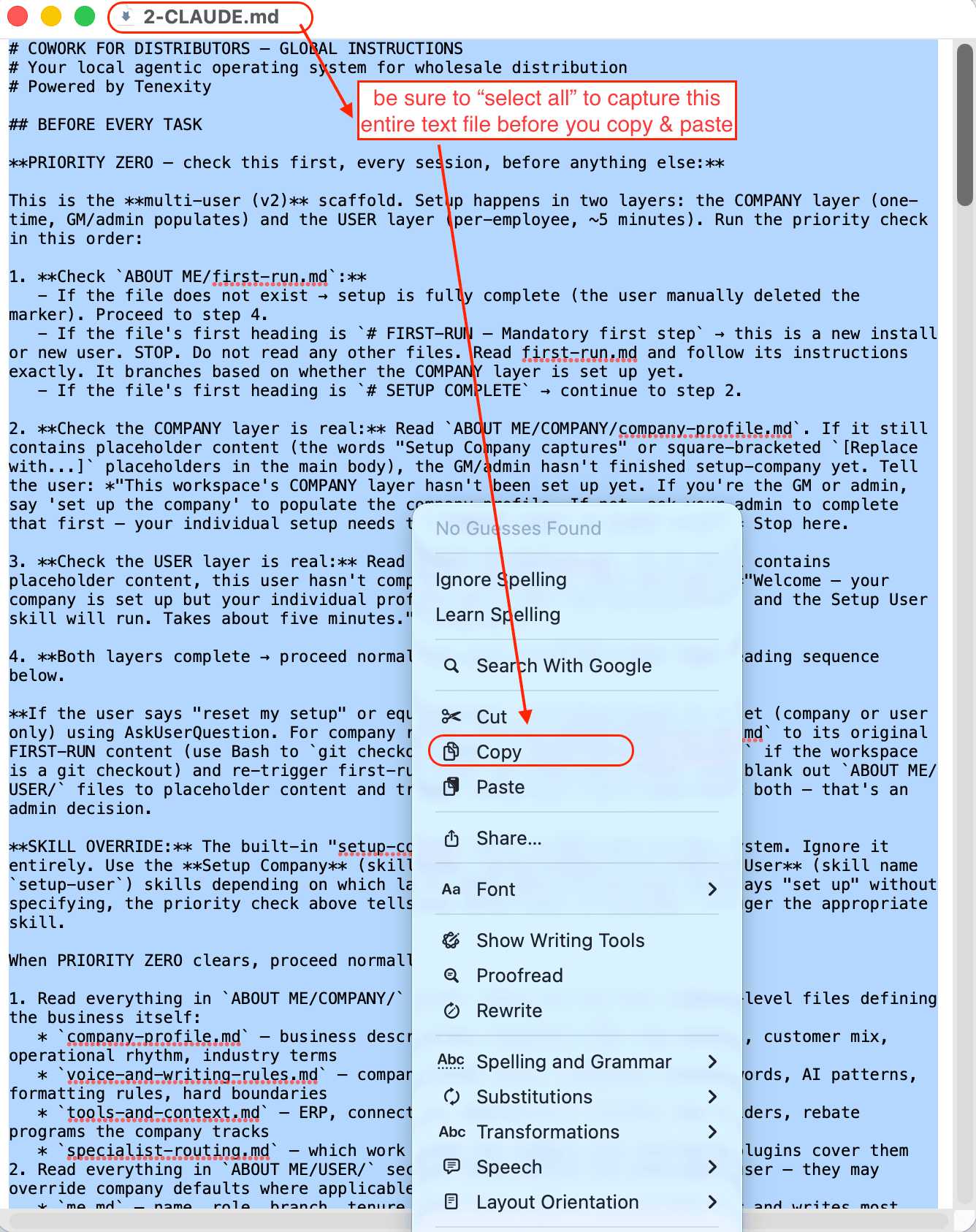
Copy everything — the whole file, top to bottom.

Selecting all of 2-CLAUDE.md to copy

Select all (Cmd+A on Mac, Ctrl+A on Windows). Copy.

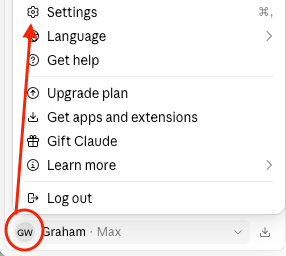
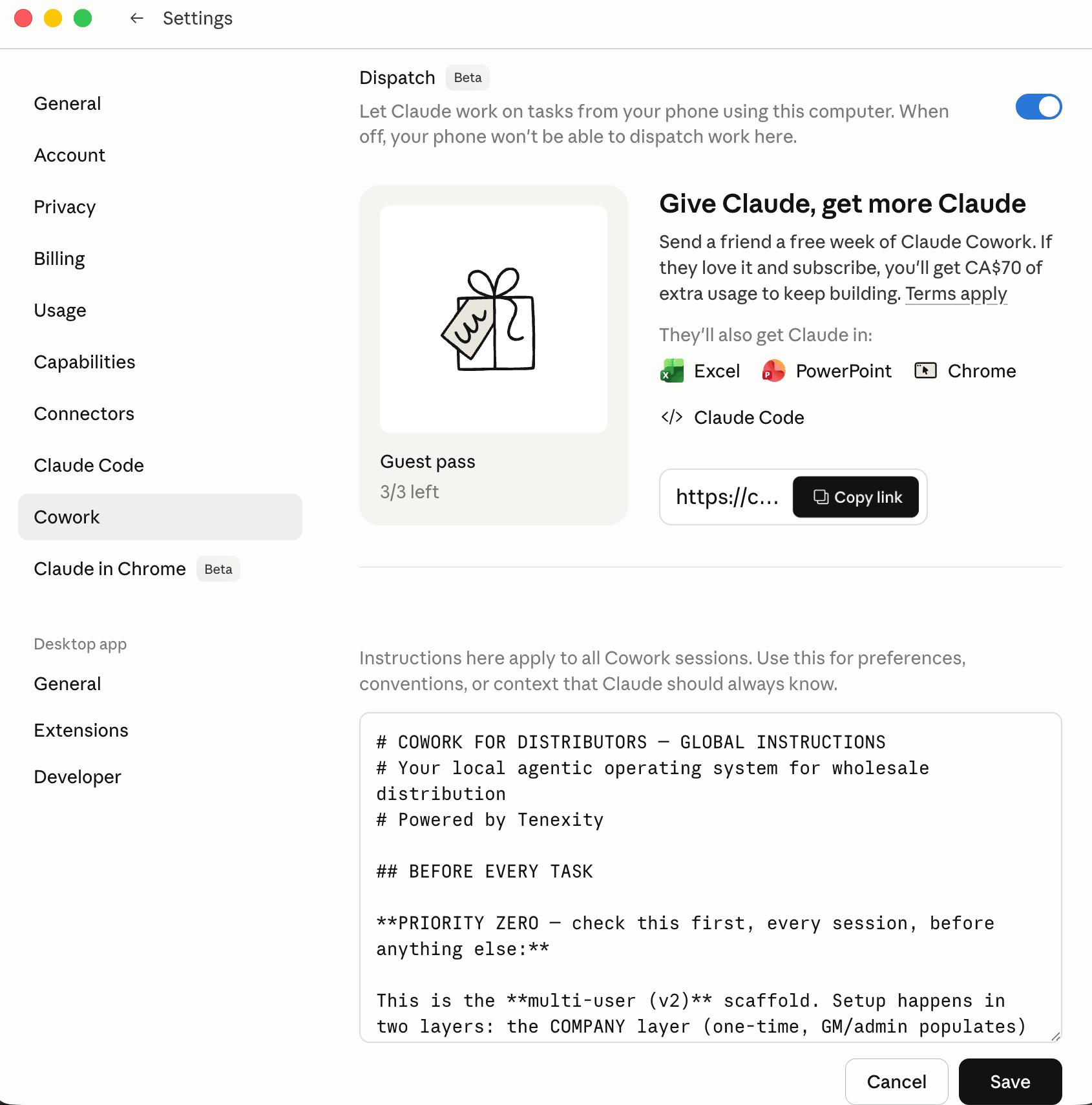
Back in CoWork, find the settings panel — look for the Customize section, then the Global Instructions field (sometimes labelled "System Prompt" or "Workspace Instructions"). Paste everything you copied. Save.

Locating the CoWork settings panel

Find the CoWork settings panel, then the Global Instructions field.

Pasting the contents of 2-CLAUDE.md into the Global Instructions field

Paste the full contents of 2-CLAUDE.md into the field. Save.

Why this matters

The Global Instructions tell Claude how your distributor workspace behaves — which files to read at the start of every session, how to log decisions, which voice rules apply, where projects belong. Without this step, Claude defaults to generic behavior. With it, Claude is distributor-fluent from session one.

3
Point CoWork at the scaffold

Open the folder as your workspace

Tell CoWork which folder to work in. This is the folder you downloaded from Tenexity and unzipped to your Documents.

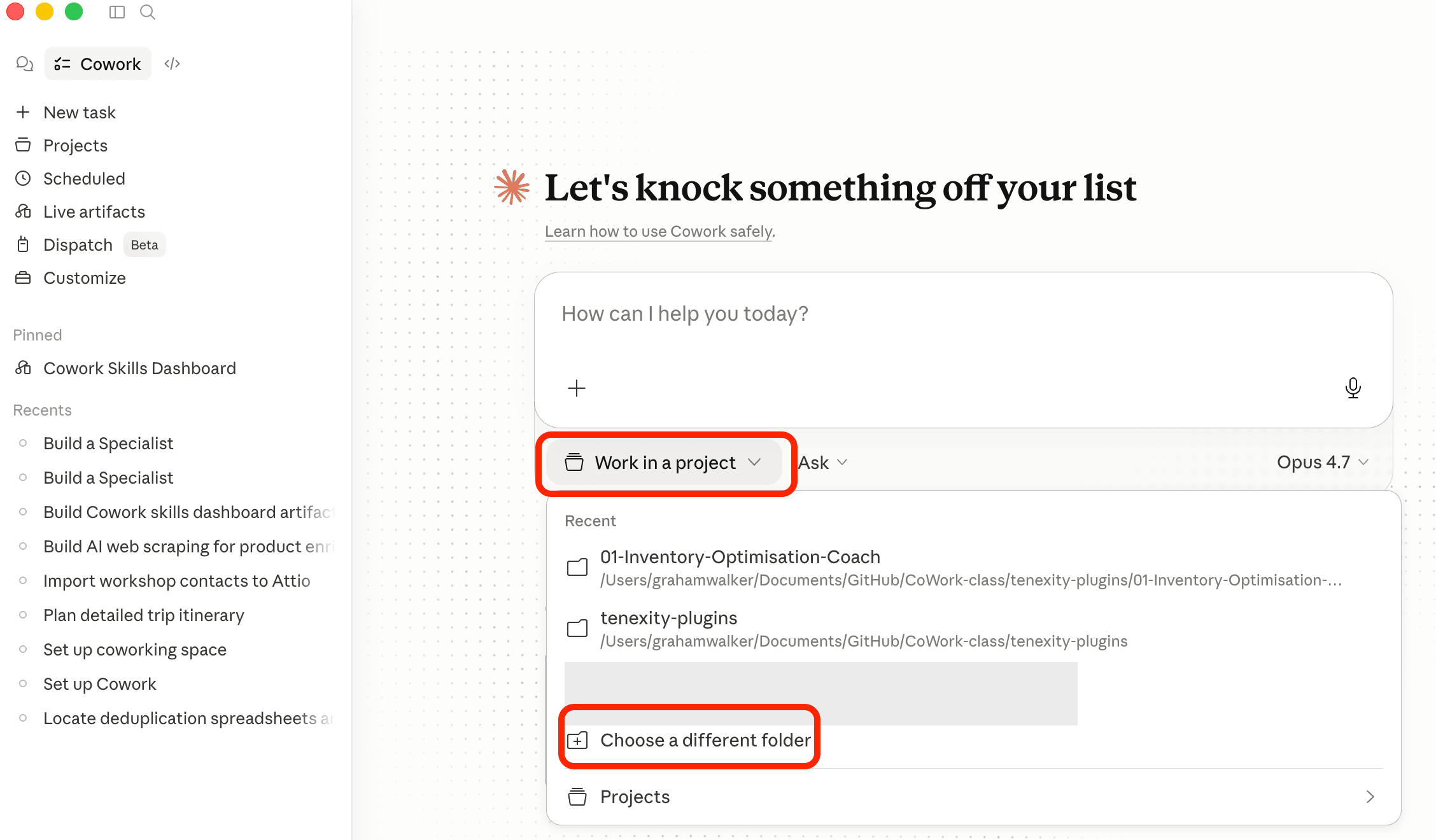
In CoWork, click the Work in a project drop-down under the chat box and browse to the folder where you unzipped the download. Select the whole folder (CoWork-for-Distributors), not a subfolder inside it — the desktop app needs read and write access to the entire structure.

CoWork showing the Work in a project folder selection

Select the CoWork-for-Distributors folder as your workspace.

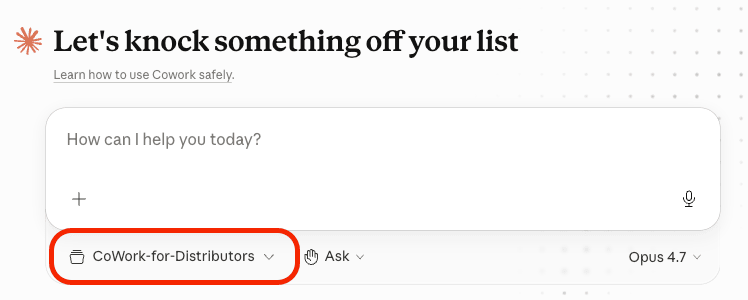
Confirming the workspace folder selection in CoWork

Confirm the selection. CoWork attaches the whole folder as your workspace.

Common gotcha

On macOS, the first time CoWork tries to read a folder, the OS may ask you to grant Files & Folders permission. Click Allow. If you skip this dialog by accident, you can grant it later in System Settings → Privacy & Security → Files and Folders → Claude → Documents Folder.

4
One upload, ten skills

Install the bundled Setup Plugin

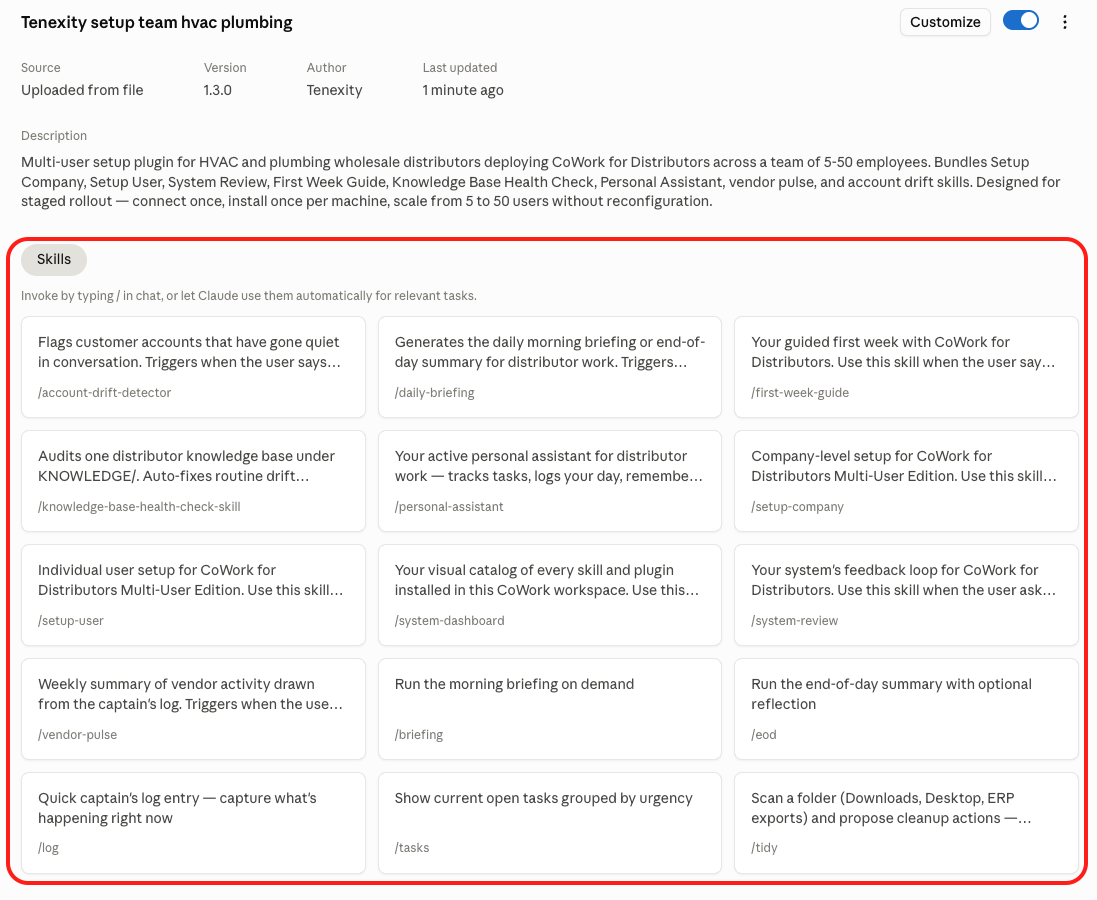
All setup skills (Setup Company, Setup User, Personal Assistant, System Review, First Week Guide, Knowledge Base Health Check, plus the scheduled-task helpers) ship as a single .plugin file inside the folder you downloaded — no marketplace required.

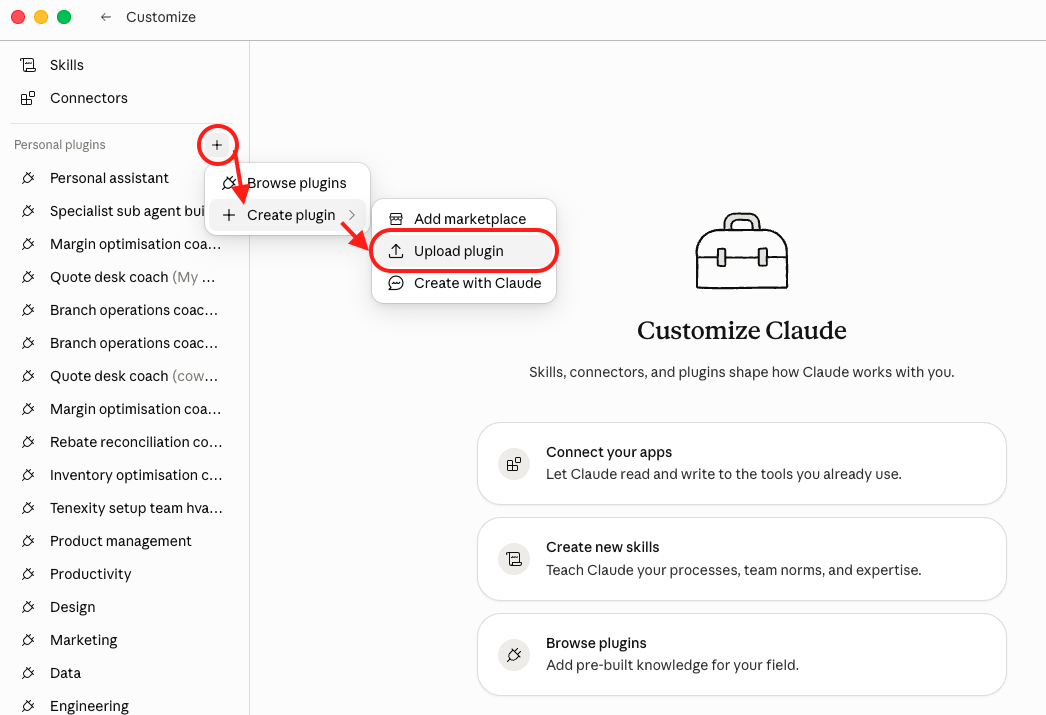
  1. In CoWork, click Customize, then open Plugins.
  2. Click the + next to Personal plugins and choose Upload Plugin.
  3. Browse your hard drive for tenexity-setup.plugin — it's inside the 3-Setup-Plugin folder you unzipped.
  4. The setup skills now appear under the Skills section. They auto-load.
The plus menu next to Personal plugins with Upload Plugin selected
The bundled Tenexity setup skills listed under the Skills section

Left: + → Upload Plugin, then pick tenexity-setup.plugin. Right: the setup skills now listed under Skills.

No marketplace needed for setup

The Tenexity marketplace (tenexity/cowork-distributor-plugins) holds this same plugin plus the five optional specialist coaches. Connect to it later when you want the coaches or want this plugin to update automatically — instructions are in the Specialist coaches spread in Part 3.

If skills don't appear

Fully quit the Claude desktop app (Cmd+Q on Mac, not just close the window) and reopen. Skills register on app startup.

5
Speak to Claude for the first time

Start your setup conversation

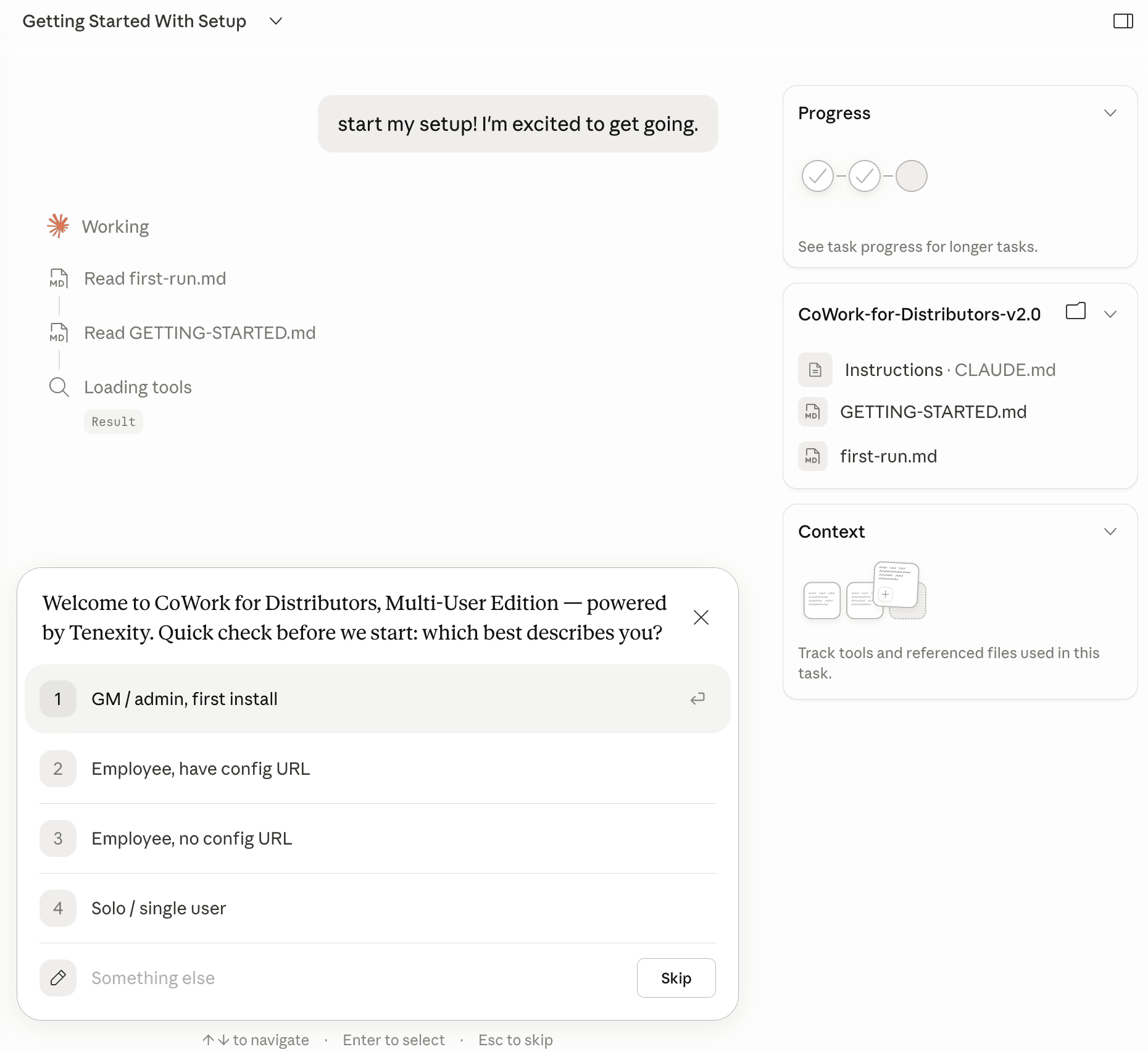
You're back in the chat now. What you type next depends on whether you're the admin running this for the first time, or an employee whose company has already set up the COMPANY layer.

If you're the admin (GM, owner, or designated company admin):

Type this and hit enter:

set up the company

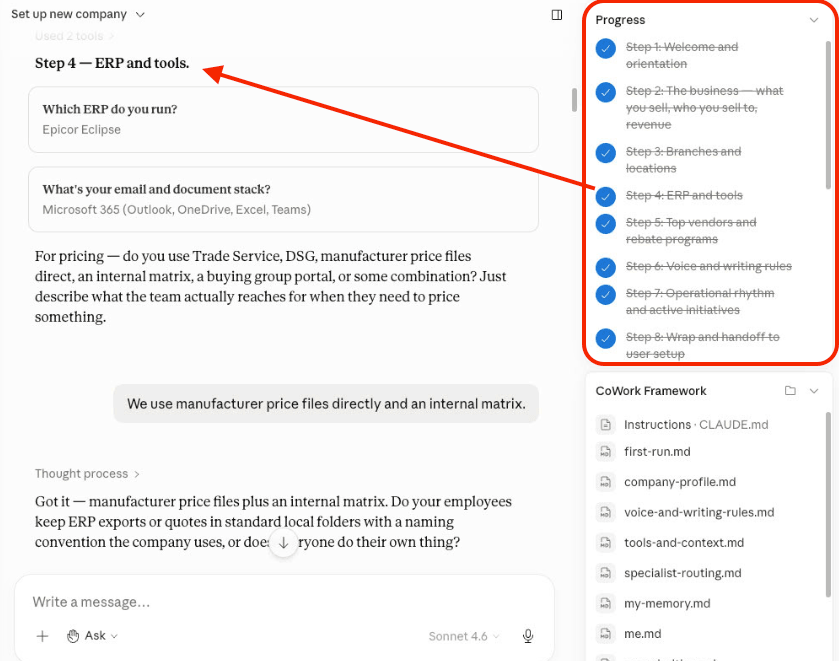
The Setup Company skill runs for about 15 minutes. It walks you through company name, branches, ERP, top vendors, customer mix, voice rules, and operational rhythm.

If you're an employee at a company where the admin has already done the company setup:

Type this and hit enter:

set up my profile

The Setup User skill reads the existing company layer and walks you through about 5 minutes of questions about you individually.

If you're not sure which case applies:

Just type:

set up

Claude checks the state of the workspace and routes you to the right skill.

Typing the setup command into CoWork and Claude beginning the setup conversation

Type your setup command and hit enter. Claude takes over from here.

You're ready

The platform is live. Now Claude takes over.

From this point forward, Claude does the heavy lifting. The setup skill asks one focused question at a time. Most answers are a sentence or two. Some questions show clickable buttons for the common answers — pick one or write your own.

The CoWork workspace ready for setup

Your workspace is ready. The setup conversation begins in the chat.

Two things to know before you start setup

You can pause anywhere. Stop mid-setup and come back in the next session. Claude remembers where you were. Just say "where did we leave off?" or "let's keep going."

Honest answers beat thorough ones. If you don't know the answer to a question, say so. "I don't know" is a valid answer. Claude will move on and circle back.

Part 2

Set up
your
workspace.

A guided conversation with Claude. The admin runs this once for the company (~15 minutes), then each employee runs their own profile setup (~5 minutes). Nine steps total. Honest answers beat thorough ones — say "I don't know" if you don't, and Claude will move on.

The 9 setup steps
  1. Welcome and orientation
  2. Import existing AI context (optional)
  3. About your business / About you
  4. Writing rules and banned words
  5. Tools and context map
  6. Memory file
  7. Setup your personal profile
  8. Schedule your daily rhythm
  9. Open your Distributor OS
1
First conversation

Welcome and orientation

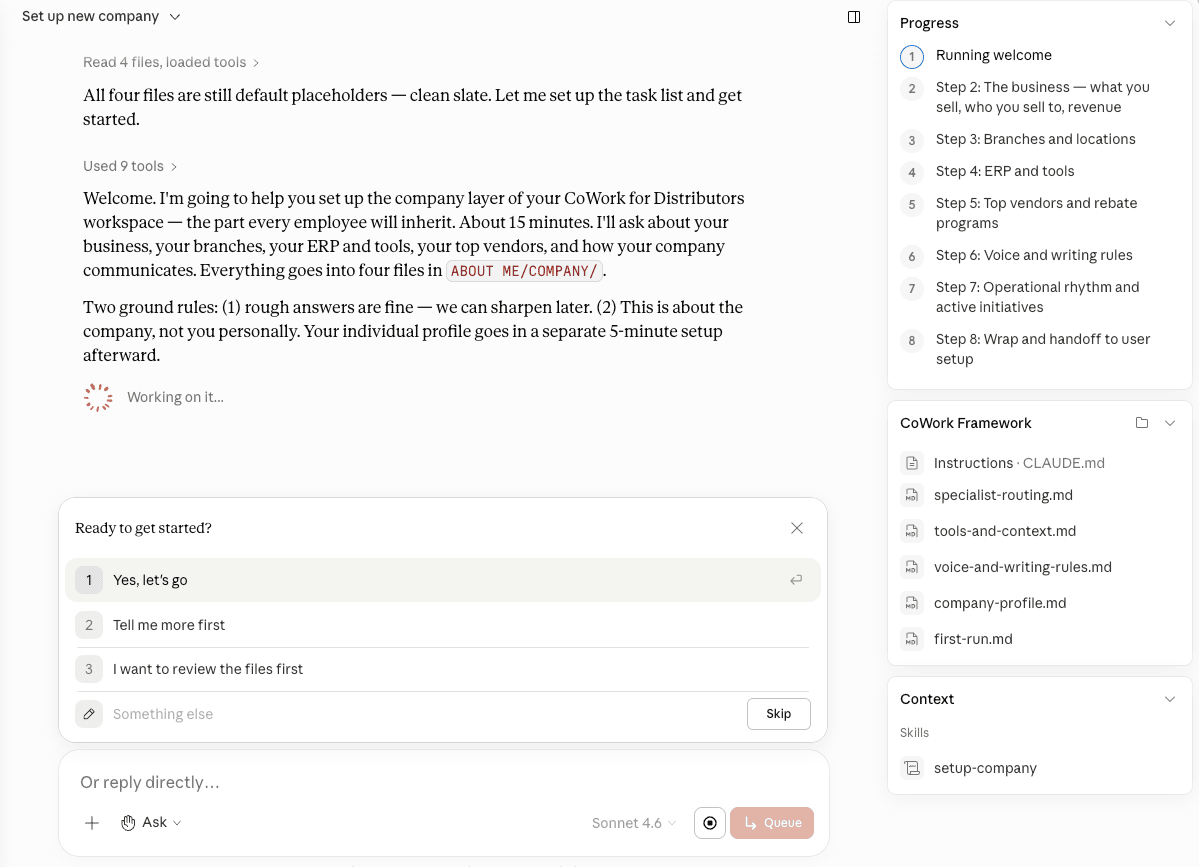
Claude introduces what CoWork for Distributors is, how the folders work, and what's coming next.

This is a quick step — under a minute. Claude tells you what to expect: about 15 minutes for the company-level setup, ~5 minutes for individual user setup, and the option to pause anywhere. You'll see clickable options when there's a short answer to give, and a text box when Claude wants you to type something more detailed.

Setup begins — Claude welcomes you and asks the first questions about the company

Setup opens with Claude asking about your business.

"You can always come back and add more detail later. Don't try to be exhaustive — be honest and brief."
2
Optional — bring in what you already have

Import existing AI context

If you've been using ChatGPT, Gemini, or existing Claude memory, you can paste what those tools already know about you and your business.

This step is optional. Most distributors skip it. But if you've spent time training another AI on your business — building an "about me" doc, feeding it your writing style, telling it about your vendors — that work doesn't need to be redone here. Ask the other tool to export everything it knows about you, then paste it into the chat.

Don't worry if you don't have any

The vast majority of users skip this step. The setup conversation captures everything from scratch — Claude doesn't need any prior context to do a thorough job.

3
The most important step

About your business / About you

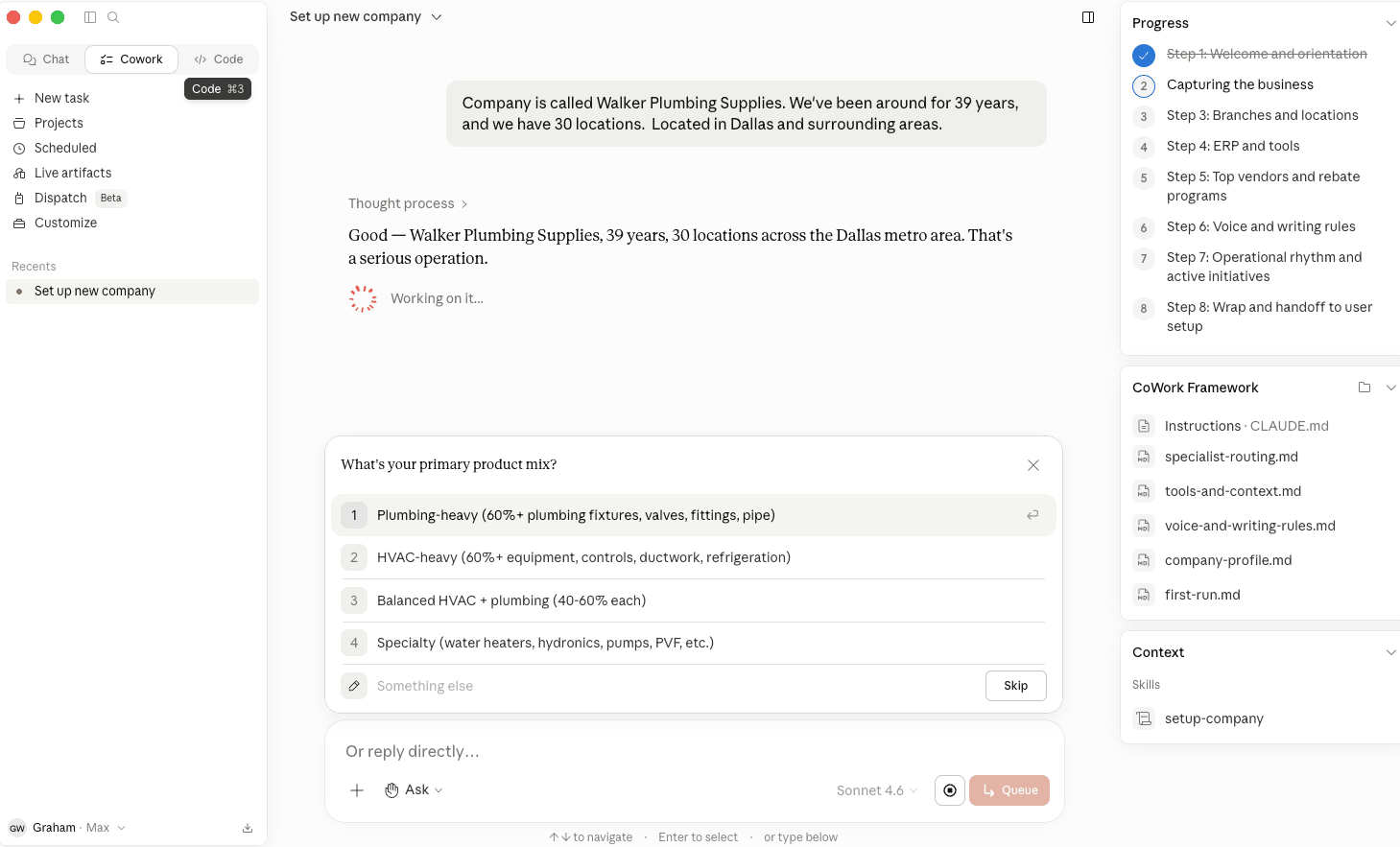
This is the longest step in setup — about 5-7 minutes. Claude asks about your company (if you're the admin) or about your role (if you're an employee).

For the admin running Setup Company: Claude captures your business name, branch count and locations, ERP system, annual revenue band, product mix between HVAC and plumbing, primary customer types, and the seasonal pattern of your year. Just follow along with the multi-step process.

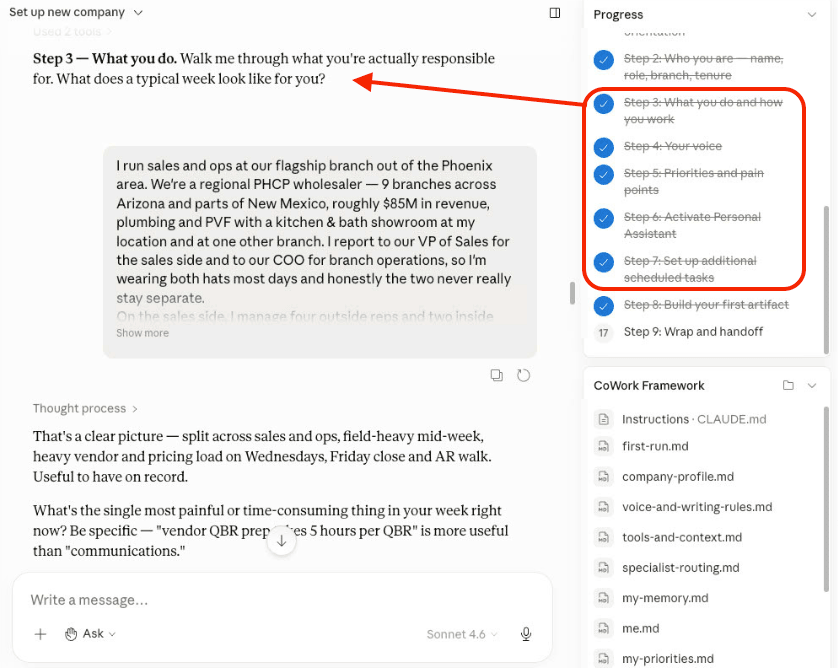
For an employee running Setup User: Claude captures your name, role, branch, tenure in the trade, technical comfort level, what you write most often, and what's hardest in your week.

Setup capturing details about your business or your role

The longest step. Take your time. Be specific.

Be specific

"Bradford White rebate claims slip every quarter" is more useful than "rebate management." "Six hours per QBR × 10 vendors = 60 hours/quarter" is more useful than "vendor communications take too long." The system uses specific pain points to prioritize what to help with first.

4
How your business writes

Writing rules and banned words

Claude captures the tone of voice your business uses, the words you'd never use, and the writing patterns you want to enforce across every output.

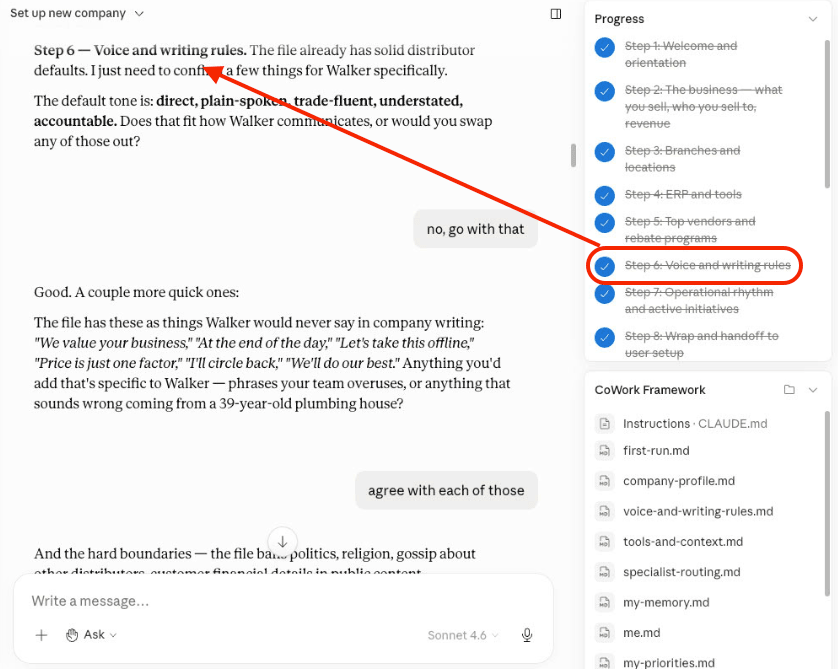
The scaffold ships with HVAC/plumbing distribution defaults already in place — banned consultant words (delve, leverage, synergy), banned distributor buzzwords (full-service, white glove, trusted advisor), structural patterns to avoid, the "no invented numbers" rule. The admin's job is to layer the company's specific tone on top: trade-fluent, accountable, family-business warm, reliable. Or whatever describes your business honestly.

Setup capturing your writing rules and banned-word list

Banned words, tone defaults, and the rules every output should follow.

Don't skip this

Generic AI writing is the single biggest credibility killer in distributor communications. Contractors and vendors can spot it instantly. The writing rules are what keep every email, every quote, every QBR draft sounding like someone who's been on the counter at 7 AM — not like ChatGPT.

5
Where information lives

Tools and context map

Claude needs to know your ERP, your manufacturer portals, your buying group, your pricing tools, and where your files live.

This isn't about connecting Claude to those systems — CoWork can connect to email, calendar, and file storage, but not to your ERP or manufacturer portals directly. What Claude needs is awareness: when you say "Eclipse," it should know that's your ERP. When you mention "the Carrier portal," it should know what that is. When you reference "the rebate tracker," it should know where the file lives.

The scaffold ships with a comprehensive starter list of HVAC/plumbing manufacturer portals — keep the ones that apply to your business, delete the ones that don't.

6
Quick confirmation

Memory file

Claude shows you the memory log file that captures decisions, preferences, and context across sessions. Quick check, then move on.

The memory file is where the system writes things you should remember between sessions: "rolling out AI workflows this quarter," "the Bradford White rebate window is open until August 31," "Smoky Mountain Property Maintenance is on credit hold after breaking two payment plans." This file grows over time as you use the system. At setup, it's nearly empty.

The memory log presented during setup

The memory log. Empty at setup. Grows over time with every significant decision.

Memory hygiene

You don't write to the memory file directly — Claude does. When you say "remember this," or when the system catches a significant decision, it appends an entry. When the file grows past roughly 150 lines, System Review rotates older entries into a quarterly archive so current context stays readable without losing history.

7
Make it personal

Set up your personal profile

Once your company profile is complete, the system asks about you — your role, your priorities, your personal communication style, and your objectives.

This is where you give Claude the guardrails and direction it needs to act as your personal assistant — and to keep every communication coming out of your Distributor OS in your voice, not a generic one. Follow along with the prompts; the answers don't need to be long, but they should be honest. The richer this layer is, the more the system reads like you.

Setup capturing your personal profile — role, priorities, voice, and objectives

Your role, priorities, voice, and objectives — the layer that turns the workspace into your workspace.

"Your personal profile is where the difference between a thin setup and a sharp one shows up. Spend the extra five minutes here."
8
Turn setup into a daily habit

Schedule your daily rhythm

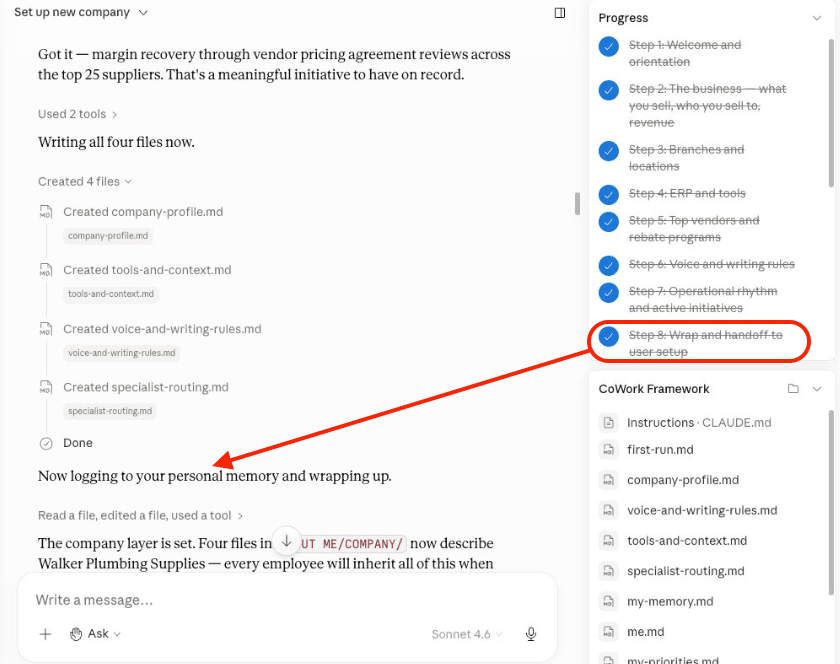
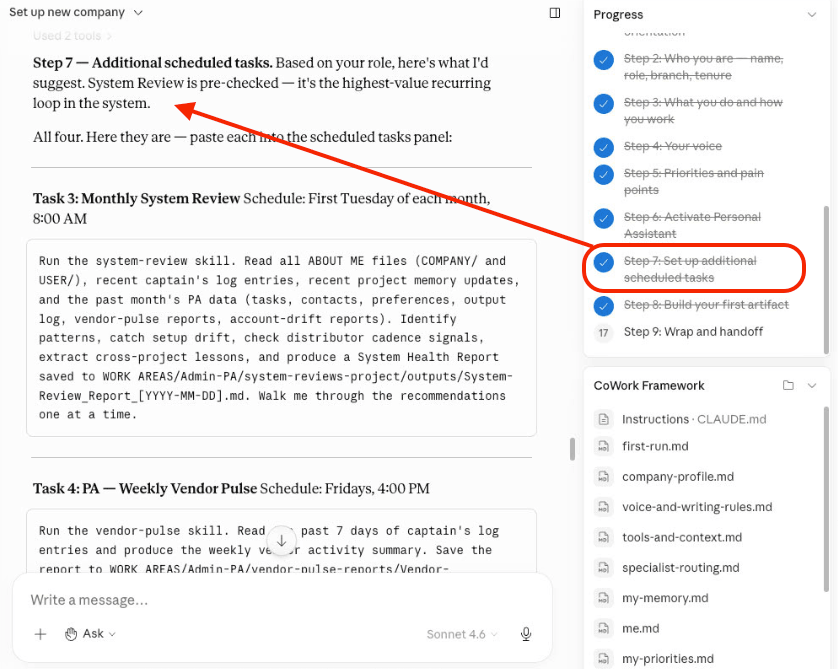
Before setup hands off, Claude offers to schedule the recurring tasks that become your daily rhythm — and tunes the lineup to the role you described back in Step 3.

The Morning Briefing, the End-of-Day Summary, the weekly Vendor Pulse and AR triage, the monthly reviews — Claude proposes the ones that fit your role, with the right model already chosen for each, and sets them up one click at a time. A branch manager gets a different default lineup than a controller.

This is the step that turns a one-time setup into a daily habit. Don't skip it. A task you schedule here is running tomorrow morning; a task you mean to add "later" usually never gets added. At minimum, say yes to the Personal Assistant and the Morning Briefing — that pair is the core daily habit, and everything else in the rhythm builds on it.

Claude proposing a role-matched scheduled-task lineup at the end of setup

Claude proposes a role-matched scheduled-task lineup. Approve the ones you want.

Where the detail lives

Part 3 — "The daily, weekly, and monthly rhythm" — covers what each scheduled task does and the value behind it. This step is just where you switch them on.

9
You're done. Open your cockpit.

Open your Distributor OS

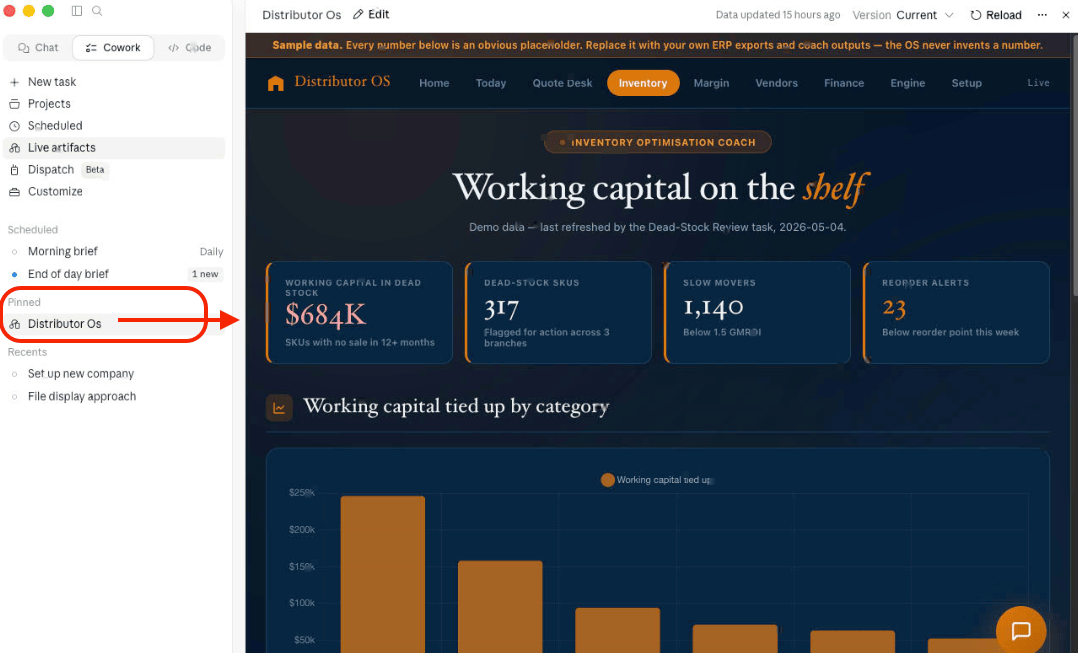
Setup is done. Before Claude closes out the conversation, it opens your Distributor OS as a pinned artifact in the right-side panel — the eight-tab cockpit your branch will show up in. Every number reads as a dash on day one; that's by design. The OS never invents a number. The coaches and scheduled tasks fill it over time.

You'll get three offers, in this order:

  1. The 30-second tab tour. Claude walks you through what each tab will show — Home, Today, Quote Desk, Inventory, Margin, Vendors, Finance, Engine, plus a Setup tab for renaming the app and relabelling tabs for your company.
  2. A demo preview (optional). Claude renders the demo seed data into a separate artifact next to your real OS, so you can see what populated tabs look like. Your distributor-os.html on disk stays untouched. To remove the demo data from your workspace, delete RESOURCES/DISTRIBUTOR-OS/demo-seed-data.md — the OS keeps working.
  3. A walk through the demo dataset. Using the seeded numbers, Claude shows what a real distributor's cockpit looks like once the coaches and rhythm have filled it in — a preview of where you're headed.
The Distributor OS opens as a pinned artifact in the right-side panel at the end of setup

The Distributor OS opens as a pinned artifact in the right-side panel — eight tabs, every number a dash on day one.

What just happened to your folder

Setup Company filled in the four templates inside ABOUT ME/COMPANY/company-profile.md, voice-and-writing-rules.md, specialist-routing.md, and tools-and-context.md now reflect your business. Setup User did the same inside ABOUT ME/USER/. From here on, new files appear inside WORK AREAS/ and durable reference libraries live in KNOWLEDGE/ — Captain's Log entries, Morning Briefings, KB notes, and per-area documents accumulate as you work.

Part 3

Use the
system.

Setup is done. Now the compounding begins. This part covers your First Week Guide, the monthly System Review, how to set up scheduled tasks, what to do when you bring on a second employee, and what to try when something breaks. Read this part once now, then come back to it as needed.

In Part 3
  1. The First Week Guide — five days of real output
  2. The daily, weekly, and monthly rhythm — what runs without being asked
  3. Connectors — what unlocks more value
  4. Anthropic skills worth installing
  5. The five specialist coaches — install when the role calls for it
  6. The Distributor OS — your branch in one screen
  7. Live artifacts — dashboards the workspace builds for you
  8. Reference material — the guides that take you further
  9. Setting up for multiple employees
  10. Troubleshooting — what to do when something breaks
  11. Where to go for help
Days 1–5 of real output

The First Week Guide.

Five days, five real pieces of output that you'll actually use. Trigger it by saying start the first week guide after setup is complete. Each day is one focused session, 25-40 minutes. The output is real work, not exercises. You can pause between days.

Day 1
The vendor email you've been avoiding. Pull up a real situation — an unanswered allocation pushback, a rebate paperwork chase, a price-increase response. Claude drafts it in your vendor voice with the relevant scorecard context already loaded.
Day 2
AR triage and five collection emails. Paste your latest Eclipse aging export. Claude builds the AR collection prioritization matrix, surfaces your top-right quadrant items, and drafts five collection emails for the most actionable accounts — in your customer voice.
Day 3
A real customer quote from an RFQ. Bring a real RFQ you need to respond to. Claude drafts the quote using your template, with availability and lead time pulled from your most recent inventory export, plus the cover email in your customer voice.
Day 4
Dead-stock analysis from your ERP export. The day most distributors remember. Paste a recent inventory export. Claude surfaces dead-stock candidates, working-capital recovery dollars, RGA opportunities, and branch-transfer recommendations. Typical first-run finding: $250K–$3M of working capital sitting on shelves.
Day 5
QBR prep for a top account. Pick a top-25 customer with an upcoming QBR. Claude pulls their TTM purchase history, fill rate, rebate program participation, and any recent commitments — then drafts the QBR one-pager and the meeting outline.
Why this works

Each day is structured around a real piece of work you needed to do anyway. The system isn't asking you to do extra work — it's collapsing the time it takes to do work you were already going to do. The First Week Guide is how you go from "I just installed this" to "I'm using this every day" in five sessions.

What the system does without being asked

The daily, weekly, and monthly rhythm.

The First Week Guide is a deep dive — five focused sessions, five real pieces of work. The rhythm is different. It's what the system does without you asking, every day, in the background, so the workspace is never cold when you open it.

This is the part that turns "I installed an AI tool" into "I run my branch on this." Read it before you skip it — the value here is bigger than the First Week Guide, and most people miss it because it's quieter.

What it feels like once it's running

Branch
manager
It's 7:40 a.m. Before the first coffee, the Morning Briefing is already in the workspace: fill rate held at 91%, three back-orders worth chasing, a Carrier allocation note from yesterday's captain's log, two RFQs the quote desk flagged overnight. The 20-minute scramble to figure out what today looks like is gone. The manager reads for 90 seconds and walks the yard already knowing the day.
Inside
sales rep
A contractor calls at 2:15 with a 14-line RFQ. The rep pastes it in, the quote drafts in the company voice with live availability, and while that's happening the Personal Assistant has already logged the call, created the follow-up task, and noted the contractor's last three orders. The rep never opens a spreadsheet, never writes a sticky note. The quote goes out at 2:31.
GM
First Tuesday of the month. The System Review ran at 8 a.m. — it read across the whole workspace, caught that two top-25 accounts have gone quiet, flagged a vendor scorecard that hasn't been touched since February, and surfaced $340K of dead stock that crossed the 12-month line. The GM didn't ask for any of it. It was waiting.
None of this is chat. It's the operating rhythm — and it's built from three things: the Personal Assistant, and the scheduled tasks that read what it captures.
The backbone everything else compounds on

The Personal Assistant.

If you set up only one thing from this section, set up the Personal Assistant. Every other task in the rhythm draws on what the PA captures.

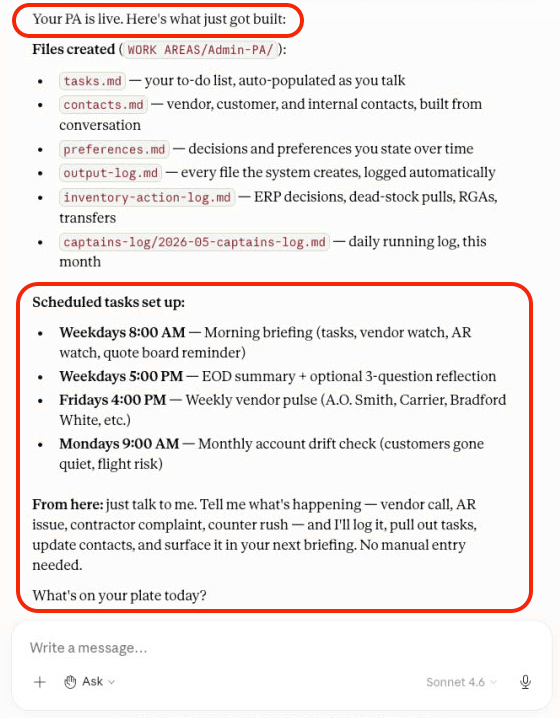
What it is. An always-on assistant that turns everything you tell it into structured records. You finish a vendor call and say "Just got off the phone with Carrier — they're cutting our Q2 allocation 12%, need to push back by Friday, loop in Tom and the Branch 02 manager." The PA doesn't just reply. It logs the call to your captain's log with the right tags, creates the task with the Friday deadline, adds the rep to your contacts, notes who needs looping in, and flags the Carrier mention for this week's Vendor Pulse. One sentence in. Five structured records out.

The Personal Assistant capturing a vendor call into structured records
One spoken sentence becomes a captain's-log entry, a task, a contact, a loop-in list, and a Vendor Pulse flag.

Why it's the backbone. Every other task in the rhythm — the briefings, the pulse, the drift check, the System Review — reads what the PA captured. The PA is the memory. Five months in, it knows your top 25 customers by name, your top 20 vendors and where each relationship stands, your team's standing decisions, and what "we said no to that vendor back in September" actually refers to.

The value, plainly

The branch manager who keeps a paper notebook loses half of what's in it. The PA loses none of it — and it's searchable, taggable, and feeding seven other things. A distributor running the PA for a year has a written operating record no retirement, no resignation, and no bad memory can erase.

Two tasks, every weekday, in the background

Your daily rhythm.

8 a.m.
weekday
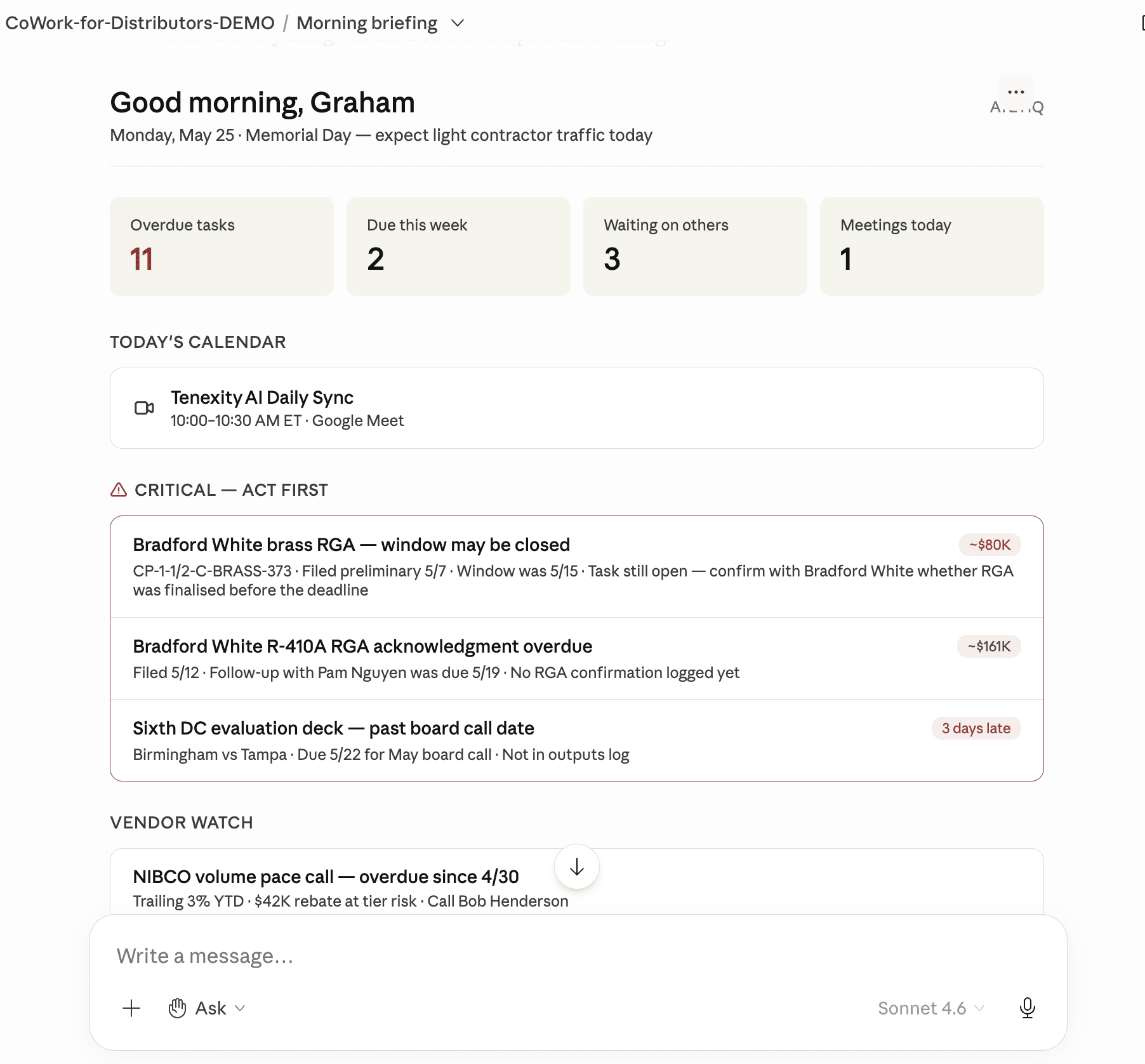
Morning Briefing. Reads yesterday's captain's log, today's task list, open inventory decisions, and the latest Vendor Pulse, then produces a one-screen briefing you scan in under 90 seconds. This is the task that makes the workspace worth opening first thing. Recommended model: Sonnet.
6 p.m.
weekday
End-of-Day Summary. Consolidates the day's captain's-log entries into a clean record and rolls open items into tomorrow. Cheap to run, runs every weekday, and means nothing said during the day is lost by morning. Recommended model: Haiku.
The Morning Briefing — a one-screen scan of the day ahead
The Morning Briefing. Ninety seconds of reading replaces the 20-minute "what's going on today" scramble.
The value, plainly

The briefing replaces the 20-minute "what's going on today" scramble. The summary replaces the things you meant to write down and didn't. Across a year, that's roughly 80 hours per person back — and a workday that starts from a populated screen instead of a blank one.

Two tasks that catch what a busy week hides

Your weekly rhythm.

Friday
afternoon
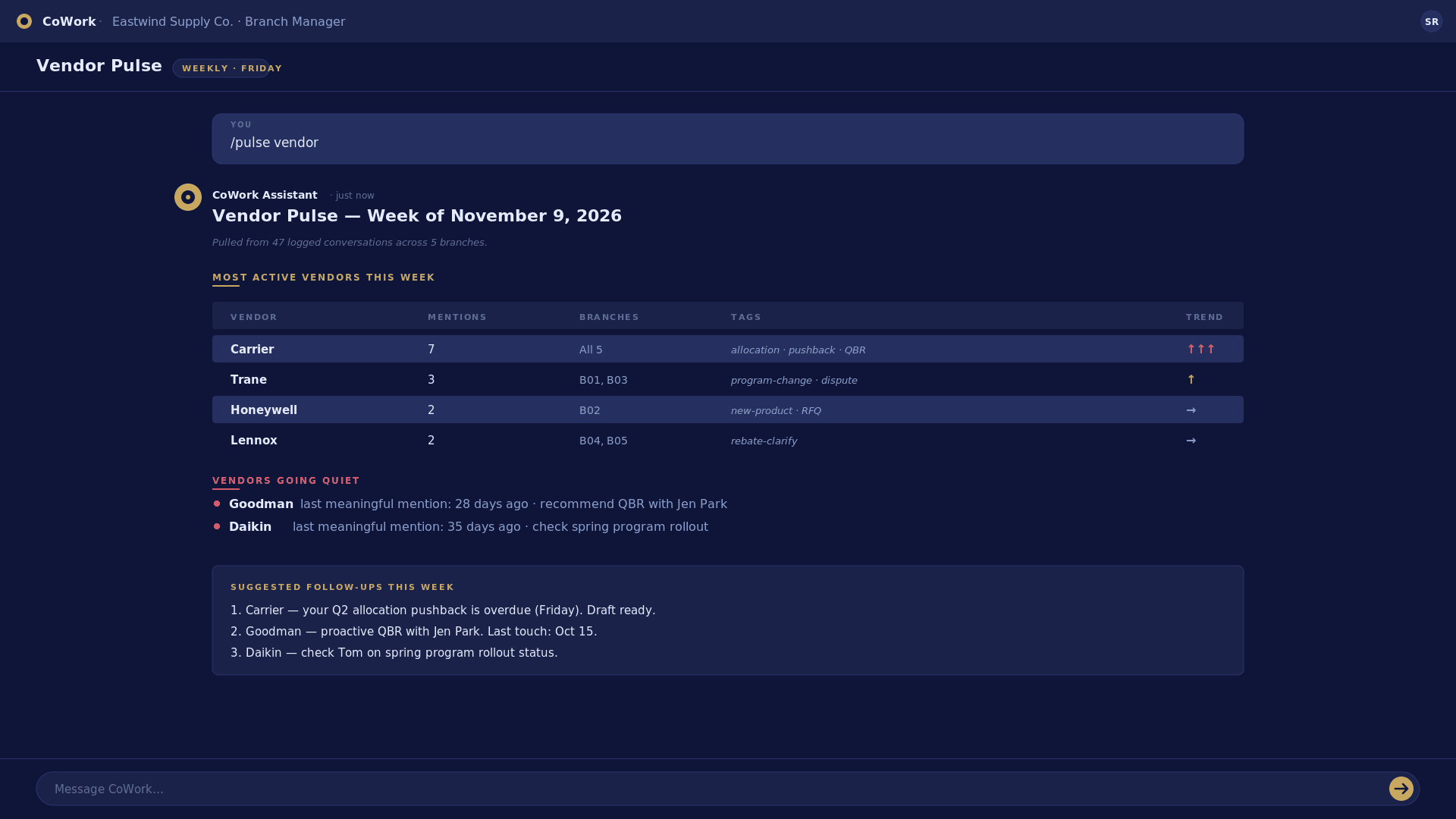
Vendor Pulse. Counts every vendor mention across the week's captain's log, flags vendors going quiet, and recommends follow-ups before a relationship drifts. The rep who used to realise in March that nobody had talked to a key vendor since December gets a nudge in week two instead. Recommended model: Sonnet.
Monday
afternoon
AR Aging Triage. For GMs, branch managers, and finance / AR / credit roles. Pulls the latest aging export, updates the collection-priority matrix, and flags accounts crossing a threshold. Monday's collections work starts from a ranked list, not from re-reading the whole aging report. Recommended model: Opus — this one touches credit decisions, so it runs on the strongest model.
The weekly Vendor Pulse — vendor mentions counted, quiet vendors flagged
The Vendor Pulse. Churn insurance on the vendor side — it catches the relationship slipping while there's still time to fix it.
The value, plainly

The Vendor Pulse catches a relationship slipping while there's still time to fix it. The AR triage is the difference between a 5-day DSO improvement and a report nobody acts on. On a $50M distributor, five days of DSO is roughly $685K of working capital freed.

Three tasks that make the reviews actually happen

Your monthly rhythm.

1st Tue
8 a.m.
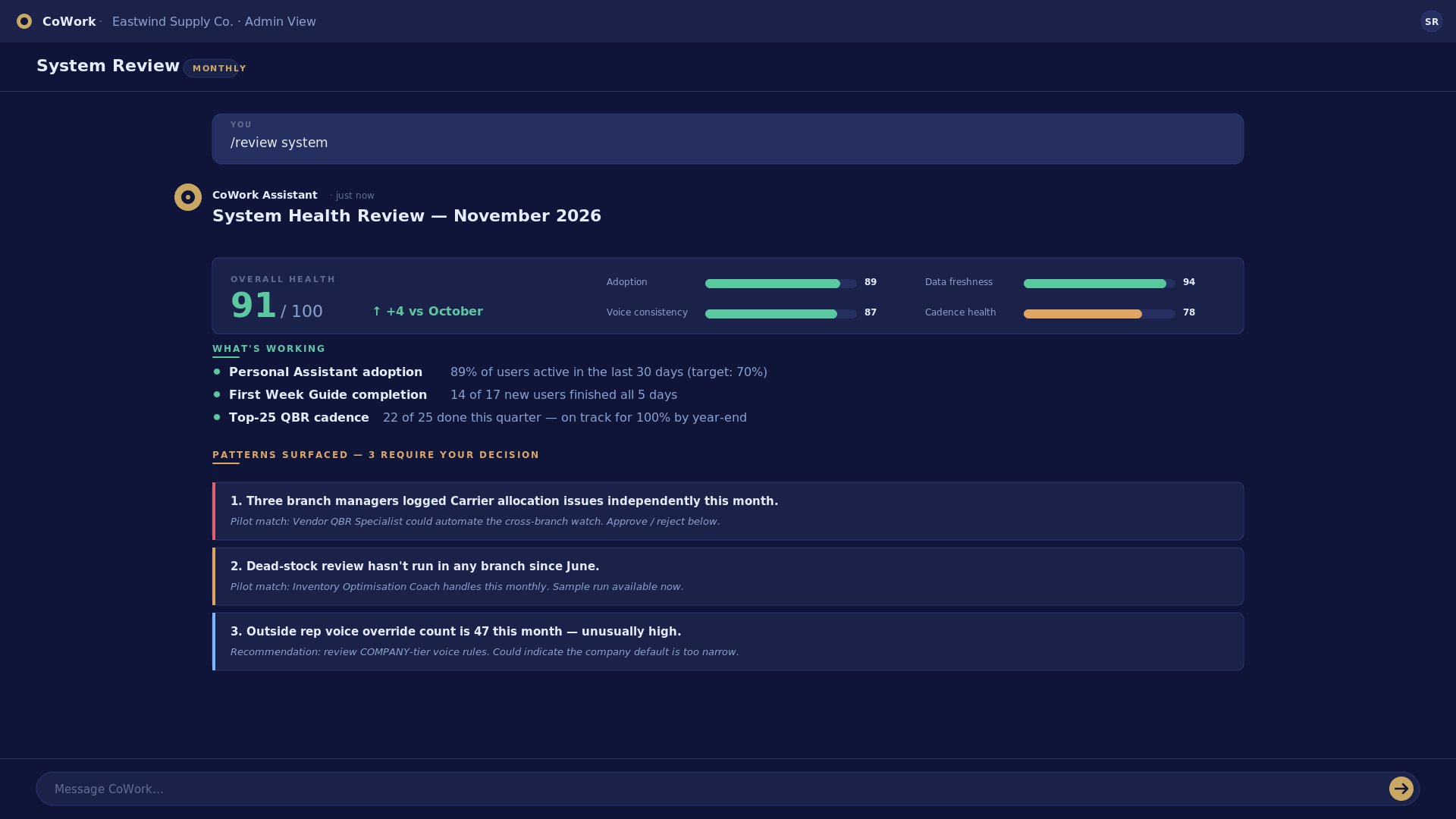
System Review. Pre-checked for every user. Reads across the entire workspace, catches setup drift, surfaces patterns no single session would see, and produces the System Health Report. It's how you find out a vendor scorecard went stale or a cadence quietly stopped running. Recommended model: Opus.
1st Mon
Account Drift Check. Reads 60 days of captain's log and flags top accounts going quiet — fewer calls, smaller orders, longer payment cycles. It buys two months of intervention time before the revenue drop shows up on a report. Recommended model: Sonnet.
1st Tue
Dead-Stock Review. For purchasing and GM roles. Paired with the monthly inventory review — surfaces SKUs crossing the dead-stock line and the working-capital math behind acting on them. Recommended model: Sonnet.
The monthly System Review — System Health Report across the whole workspace
The monthly System Review. The task that keeps the whole platform honest.
The value, plainly

The monthly rhythm is what makes the reviews actually happen. Every distributor means to review dead stock monthly. The ones who put it on a schedule and let the system surface what to act on recover 30-40% of their dead stock by year-end instead of carrying it into the next one.

About 30 seconds per task

Setting these up.

Most of these were offered to you during Setup User, in the "Schedule your daily rhythm" step. If you set them up then, they're already running — skip ahead. If you skipped that step, here's how.

01
In CoWork, open Customize → Scheduled Tasks.
02
Click + New scheduled task.
03
Paste the task's prompt. Each one is in RESOURCES/GUIDES/scheduled-tasks.md.
04
Set the cadence and the recommended model from the table below.
05
Save. It runs on the next matching slot.
DAILY
Morning Briefing · 8 a.m. weekday
Everyone · Sonnet
DAILY
End-of-Day Summary · 6 p.m. weekday
Everyone · Haiku
WEEKLY
Vendor Pulse · Friday
Everyone · Sonnet
WEEKLY
AR Aging Triage · Monday
GM, branch managers, finance / AR / credit · Opus
MONTHLY
System Review · 1st Tuesday
Everyone, pre-checked · Opus
MONTHLY
Account Drift Check · 1st Monday
GM, account managers, sales · Sonnet
MONTHLY
Dead-Stock Review · 1st Tuesday
Purchasing, GM · Sonnet
Where to start

You don't have to run all seven. Start with the Personal Assistant and the Morning Briefing — that's the daily habit. Add the rest as the cadence earns its place in your week.

What removes the friction

Connectors that unlock more.

The scaffold works fully on paste alone. That's the design, and it never changes — you stay in control of exactly what the system sees. Connectors don't replace the paste-based workflow; they remove the steps where pasting is just friction. The highest-value ones change what the system can do, not only how fast.

Connectors live in Customize → Connectors. Each one is a sign-in, not an install — about a minute, and you can disconnect any time.

CONNECT FIRST

Microsoft Outlook

For most distributors, the single highest-value connector. It unlocks three things:

Voice extraction. Reads your last 60 days of sent mail and learns how you actually write — harder and data-led with vendors, warmer with customers, short and direct with your team. Three voices, captured automatically, no pasting.

Thread context. When you draft to a vendor or customer, the system finds the existing thread first. You pick up where the conversation left off instead of starting cold.

Calendar-aware prep. A QBR or vendor visit on your calendar can trigger its own prep. The system knows the meeting is coming before you ask.

Connect: Customize → Connectors → Microsoft Outlook → Connect

Google Workspace

The same three unlocks as Outlook — voice extraction, thread context, calendar-aware prep — for distributors running Google instead of Microsoft. The connector flow differs slightly; the value is identical.

Connect: Customize → Connectors → Google Workspace → Connect

File sync and CRM

Connectors, continued.

OneDrive / SharePoint

If more than one person at your distributorship uses the scaffold, this is the connector that makes the shared model work. It syncs the workspace so every employee reads the same COMPANY layer, and it makes your vendor-letter and customer-document archive readable by the workspace — so a scanned rebate letter from two years ago is something the system can actually find.

Connect: Customize → Connectors → OneDrive

HubSpot

For distributors running HubSpot as their CRM: customer pipeline state and activity history become available during QBR prep and the monthly Account Drift check. The account manager prepping a top-25 review gets the open-deal picture without leaving the workspace.

Connect: Customize → Connectors → HubSpot → Connect

A note on CRMs

HubSpot is the connector shown here because it's the most common CRM among independent distributors. If you run Salesforce, Pipedrive, or another CRM, check Customize → Connectors — the list grows, and the value is the same: pipeline and activity history available where you prep accounts.

Team chat — and where the free line is

Connectors, continued.

Slack / Microsoft Teams

Captain's-log entries straight from channel messages — the branch manager who flags something in Teams doesn't have to re-log it in the workspace. Daily briefings can be delivered to a channel, so the morning read lands where the team already looks.

Connect: Customize → Connectors → Slack (or Microsoft Teams)

ERP-direct — Eclipse, P21

You'll notice there's no free connector that reads your ERP directly. That's deliberate. The scaffold and the five coaches are paste-based by design — you control exactly what data the system sees, every session.

ERP-direct read access — the system pulling your inventory, margin, and AR exports on a schedule so nobody pastes anything — comes with the Tenexity AI apps, not this base package. Same line the five coaches draw: the free coach teaches the method and works your pasted data; the paid app runs it against your live ERP. If that's the stage you're at, see the "What this becomes" spread at the back of the booklet.

Connect Outlook or Google first — that's the one that changes how the system sounds. Add the rest as your use of the workspace earns them.
General skills that land hard in distribution

Anthropic skills worth installing.

Beyond the Tenexity setup plugin and the five coaches, Anthropic publishes a library of general-purpose skills that snap into the same workspace. They aren't distributor-specific — but several do a job that lands hard in a wholesale operation.

A skill isn't a plugin and isn't a connector. It's a focused capability the workspace reaches for when a task needs it — you don't launch it, the system calls it. Install from Customize → Skills. Here are the six worth your time.

PDF skill — reads what lands in your inbox

Reads, extracts from, and fills PDF files, including scanned documents and fillable forms.

Half of what a distributor receives arrives as a PDF: vendor rebate-program updates, manufacturer price-increase letters, spec sheets, credit applications, freight claims, COIs. Most get skimmed and filed. With the PDF skill you drag a scanned Bradford White rebate-program PDF into the workspace and the system pulls the effective dates, the program structure, and the claim deadline — then hands it to the Rebate Coach or logs it as a task. The letter stops being something you meant to read.

Install: Customize → Skills → find the PDF skill → Add

Excel skill — branch P&Ls and ERP exports without the spreadsheet wrestling

Create and analyze Excel spreadsheets.

A controller pastes a branch P&L export and gets a variance walk in plain language — what moved, by how much, and the three lines worth a closer look. An ERP inventory export becomes a structured analysis sheet without manual pivot-table setup. The "what happens to branch contribution if freight cost rises 8%" scenario, modeled in a minute. Pairs with the Margin Optimisation and Inventory coaches — those coaches read the analysis; the Excel skill produces it. Removes the spreadsheet wrestling that sits between the export and the decision.

Install: Customize → Skills → find the Excel skill → Add

Customer letters and decks

Skills, continued.

Word skill — customer letters that match your company voice

Create and edit Microsoft Word documents.

Paired with your company writing rules and user voice overrides, the Word skill drafts the price-increase letter that has to soften a 6% bump without losing the account, the credit-application response, the contractor newsletter, the vendor-letter follow-up. Comes out as a .docx that's ready to send — not a markdown blob you have to reformat. The distributor who never quite gets around to the quarterly newsletter suddenly gets around to it.

Install: Customize → Skills → find the Word skill → Add

PowerPoint skill — QBR decks and carry-line reviews, built in your template

Generate PowerPoint presentations.

The top-25 QBR deck. The monthly business review slide. The annual carry-line presentation to the GM. Vendor scorecards as a deck instead of a memo. Pairs with the Account Drift work and the Branch Operations Coach — they produce the analysis; PowerPoint produces the deck the GM actually opens.

Install: Customize → Skills → find the PowerPoint skill → Add

Brand and team comms

Skills, continued.

Brand Guidelines skill — consistent customer-facing output across the team

Apply brand consistency across outputs.

Most distributorships have inconsistent brand presence — every employee uses slightly different letterhead, slide templates, color palette, signature blocks. The Brand Guidelines skill enforces consistency: every customer letter, deck, and document uses the same logo placement, the same colors, the same typography. Pairs with the company writing rules — voice controls how you sound, Brand Guidelines controls how you look.

Install: Customize → Skills → find the Brand Guidelines skill → Add

Internal Comms skill — channel updates and branch huddles that actually land

Draft internal team communication.

The daily branch huddle message in Slack or Teams. The captain's-log update. The EOD summary the dispatcher sends. The announcement when a vendor changes a program. Replaces the "I'll send something later" with a draft that lands in two minutes, written in the same register your team already reads.

Install: Customize → Skills → find the Internal Comms skill → Add

Skills, connectors, coaches — how they fit

A connector links the workspace to an outside system (your email, your files). A skill is a focused capability the workspace calls when a task needs it (read a PDF, format a branch P&L spreadsheet, draft a customer letter in your voice). A coach — the five Tenexity specialists — is a distribution-trained expert you have a working session with. You don't choose between them: the PDF skill reads the rebate letter, the connector files it, the Rebate Coach reconciles it, the System Review remembers it. They compound.

Five free distribution-fluent specialists

The five specialist coaches.

The setup plugin, the rhythm, the connectors, and the skills are the general-purpose layer. The five specialist coaches are the distribution-specific one — built by Tenexity for HVAC and plumbing wholesale, trained on the rebate structures, the seasonality, the ERP export formats, and the trade vocabulary your team already uses. Distribution-fluent from the first message.

All five ship free in the marketplace you connected during install. They read what you paste — no ERP connection — draft in your company voice, never invent numbers, and never execute on your behalf. Two senior-leaning (Margin, Rebate Reconciliation) and three operational (Inventory, Quote Desk, Branch Operations) cover the org chart from counter to GM. Install the two or three that match your team, add the rest as the work calls for them.

01
Inventory Optimisation Coach
Purchasing, GM · dead stock, reorder points, branch transfers
02
Rebate Reconciliation Coach
Purchasing, controller, GM · missed claims, program reconciliation
03
Margin Optimisation Coach
GM, controller · margin slip diagnosis, monthly review one-pager
04
Quote Desk Coach
Inside sales, counter sales · RFQ drafting, margin guardrails
05
Branch Operations Coach
Branch managers · fill rate, back-order triage, branch P&L
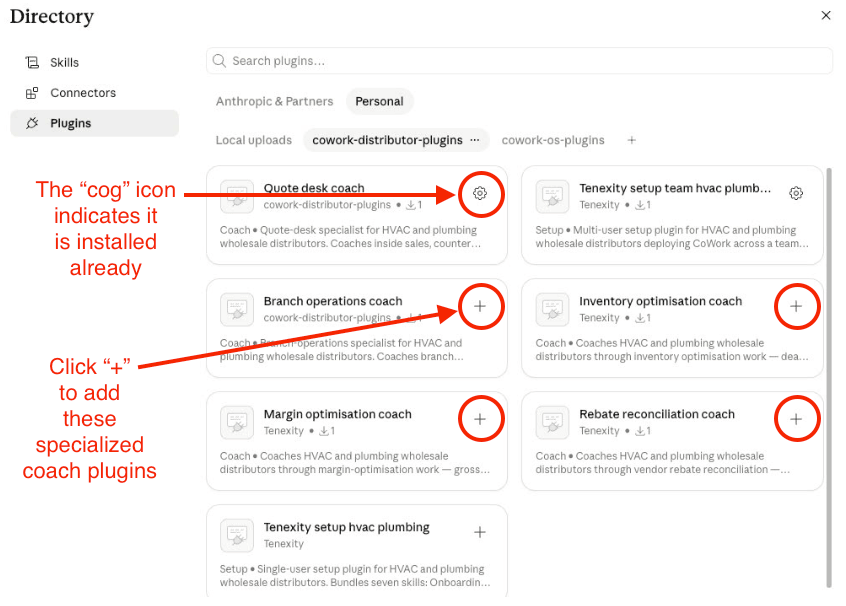
The five specialist coaches available in the Tenexity marketplace

The five free specialist coaches — one click each from the marketplace.

Purchasing + GM

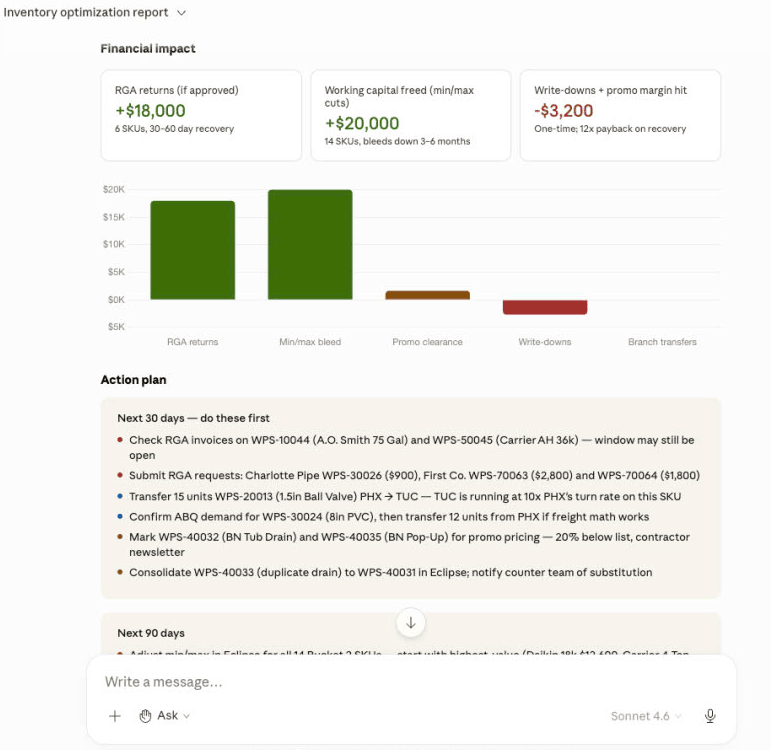
Inventory Optimisation Coach.

The one most distributors install first — because the first session usually pays for itself. Paste an ERP inventory export and the coach walks the dead-stock line, the working-capital math, and the action list: which SKUs to return, transfer, discount, or stop buying.

Triggers on
"review my inventory," "run a dead stock analysis," "what's my working capital tied up in," "rebalance my inventory between branches," "build me an obsolescence report."
Surfaces
Dead-stock candidates, reorder-point reviews, ABC classification, branch-transfer rebalancing, vendor-return programs, seasonal stocking patterns, working-capital snapshots.
Needs from you
An ERP inventory export — ideally part, description, on-hand, on-order, last sale date, last receipt date, ATD revenue, average cost. P21, Eclipse, SX.e, and Agility all export this. Even a basic on-hand-plus-last-sale export gets you the dead-stock read.
Produces
A working-capital snapshot and a ranked dead-stock action list.
Typical first-run finding

$250K–$3M of working capital tied up, depending on size.

Sample output from the Inventory Optimisation Coach — a working-capital snapshot and ranked dead-stock action list

A sample output the Inventory Optimisation Coach produces — working-capital snapshot and a ranked dead-stock action list.

Install: Customize → Plugins → tenexity/cowork-distributor-plugins → Inventory Optimisation Coach → +

Purchasing + controller + GM

Rebate Reconciliation Coach.

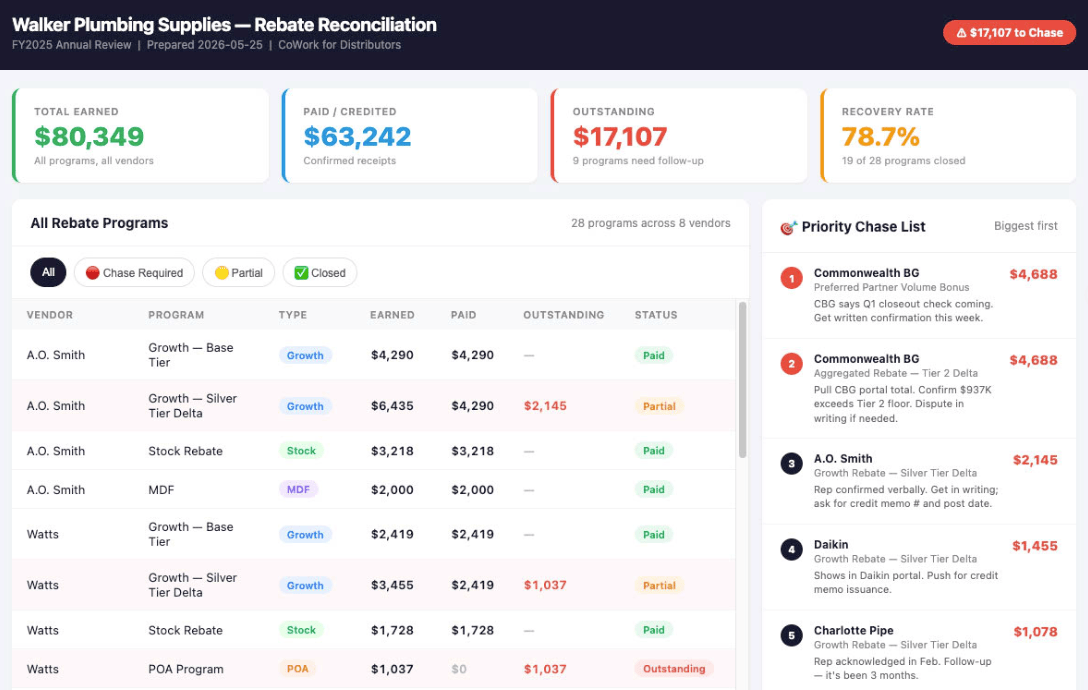
Rebates are money you've already earned. This coach figures out which programs you're enrolled in, what you should have been paid, what actually landed, where the gap is — and drafts the claim language to recover it, in a tone that doesn't burn the vendor relationship.

Triggers on
"reconcile my rebates," "i think i'm leaving rebates on the table," "what rebates am i missing," "draft a rebate dispute," "spa pricing review," "co-op funds review," "mdf reconciliation."
Surfaces
Volume / growth / mix / SPA / co-op / MDF program structure; accrual-vs-earned reconciliation; missed claims and threshold misses; multi-tier rebate math; claim-letter drafting.
Needs from you
Your rebate program terms or summaries, your accrual records, and purchase history by vendor. Paste what you have — the coach works with partial data and tells you plainly what's missing before it reconciles.
Produces
A rebate exception list — programs, expected-vs-earned, and the claims worth filing.
Typical capture

0.5–2% of vendor purchases — $150K–$600K a year for a $30M-purchasing distributor.

Sample output from the Rebate Reconciliation Coach — a rebate exception list with claims worth filing

A sample output the Rebate Reconciliation Coach produces — a rebate exception list with programs, expected-vs-earned, and the claims worth filing.

Install: Customize → Plugins → tenexity/cowork-distributor-plugins → Rebate Reconciliation Coach → +

GM + controller · pricing-aware roles

Margin Optimisation Coach.

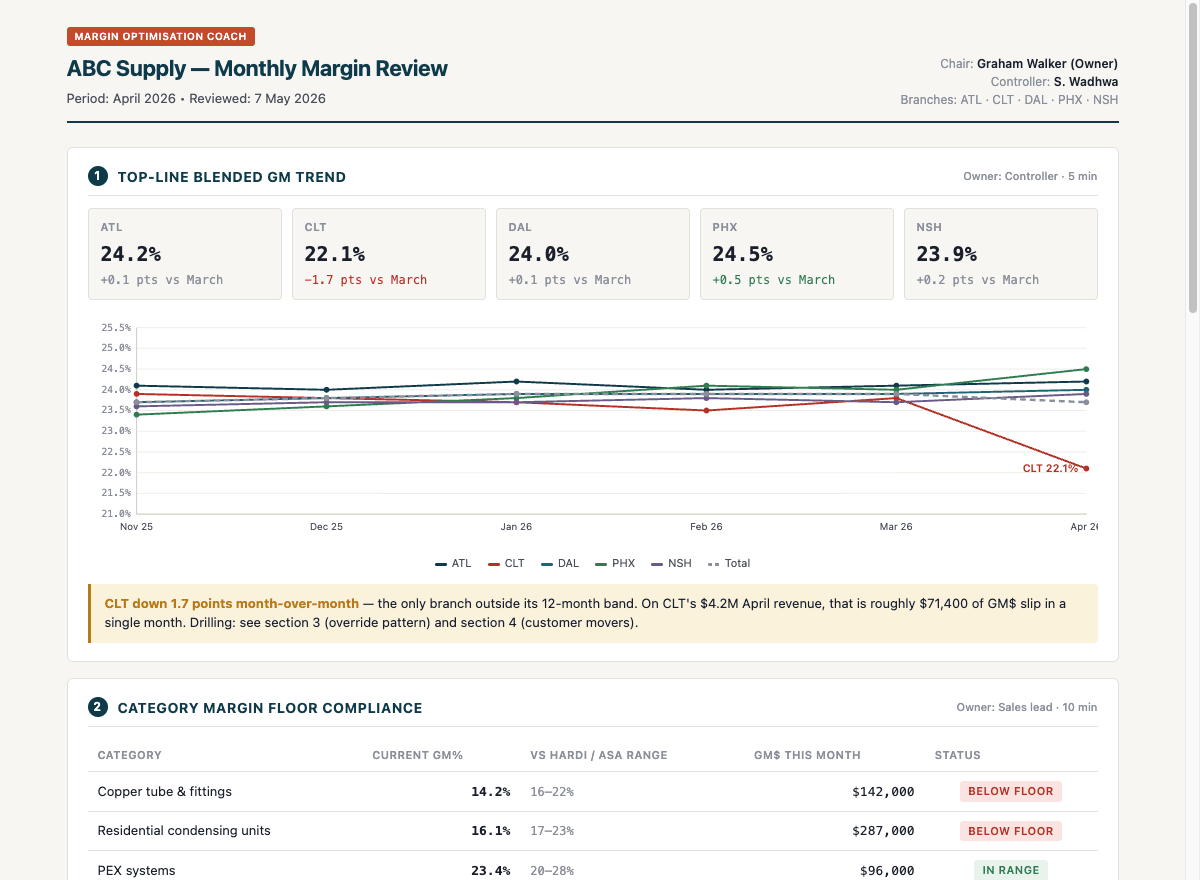
A senior pricing analyst on call. Paste a sales-with-cost export and the coach runs the diagnostic — line, blended, and gross margin — names the patterns behind the slip, and produces a monthly margin review one-pager you can take straight to the meeting.

Triggers on
"review my margins," "why is my gross margin slipping," "set up quote desk guardrails," "where am I leaking margin," "compare matrix vs contract pricing," "give me a monthly margin review one-pager."
Surfaces
Unit economics by product, customer, and vendor; pass-through pricing scenarios; category margin floors; freight as a margin line; GMROI; the seven-pattern lost-margin recovery screen — stale contracts, override drift, unclaimed rebates, freight under-recovery, returns slack, terms cost not loaded, MAP violations.
Needs from you
A sales-with-cost line export — customer, part, branch, qty, sell extended, cost extended, GM%, GM$. Override and contract flags help. The coach asks two questions about your cost basis before it computes anything.
Produces
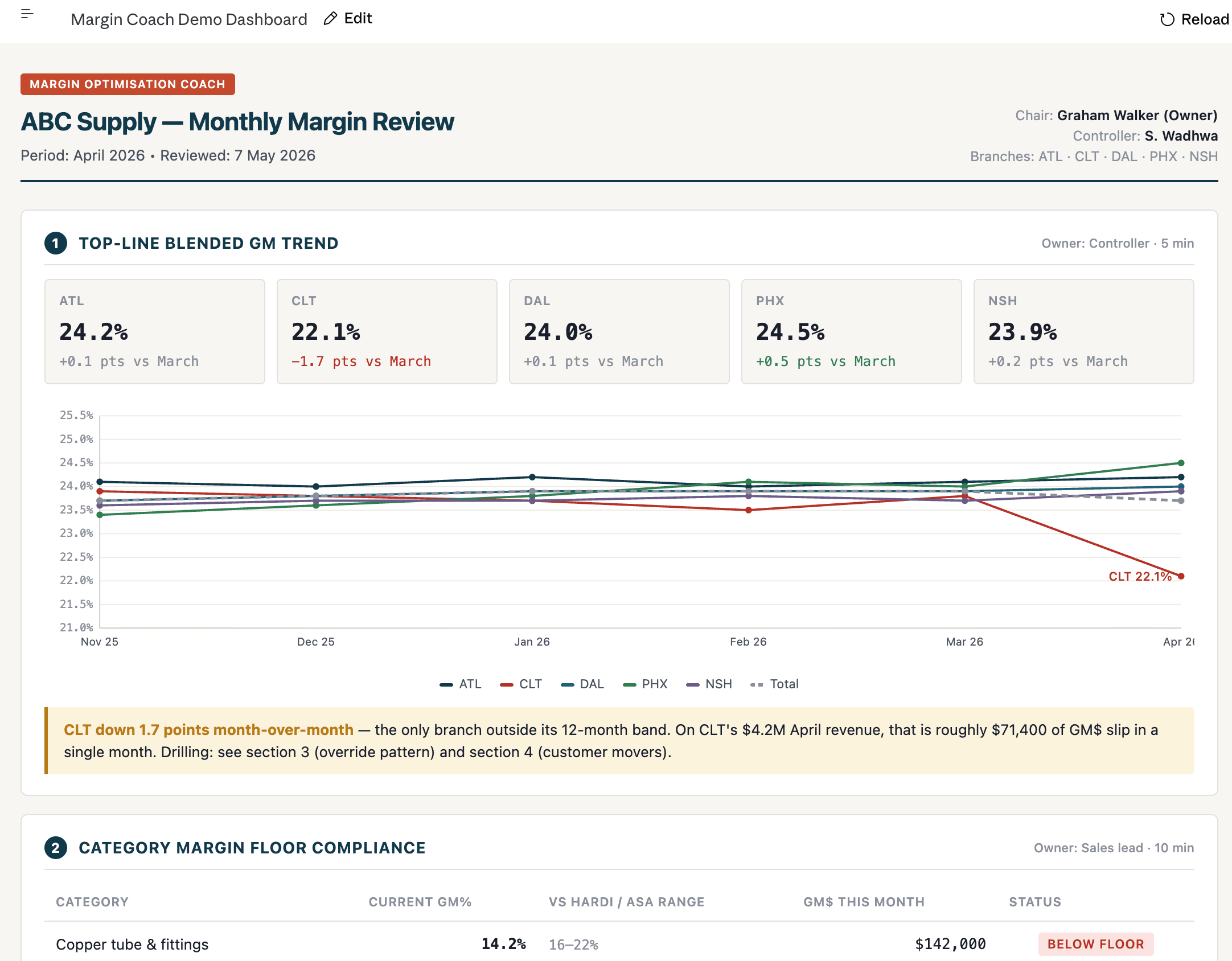
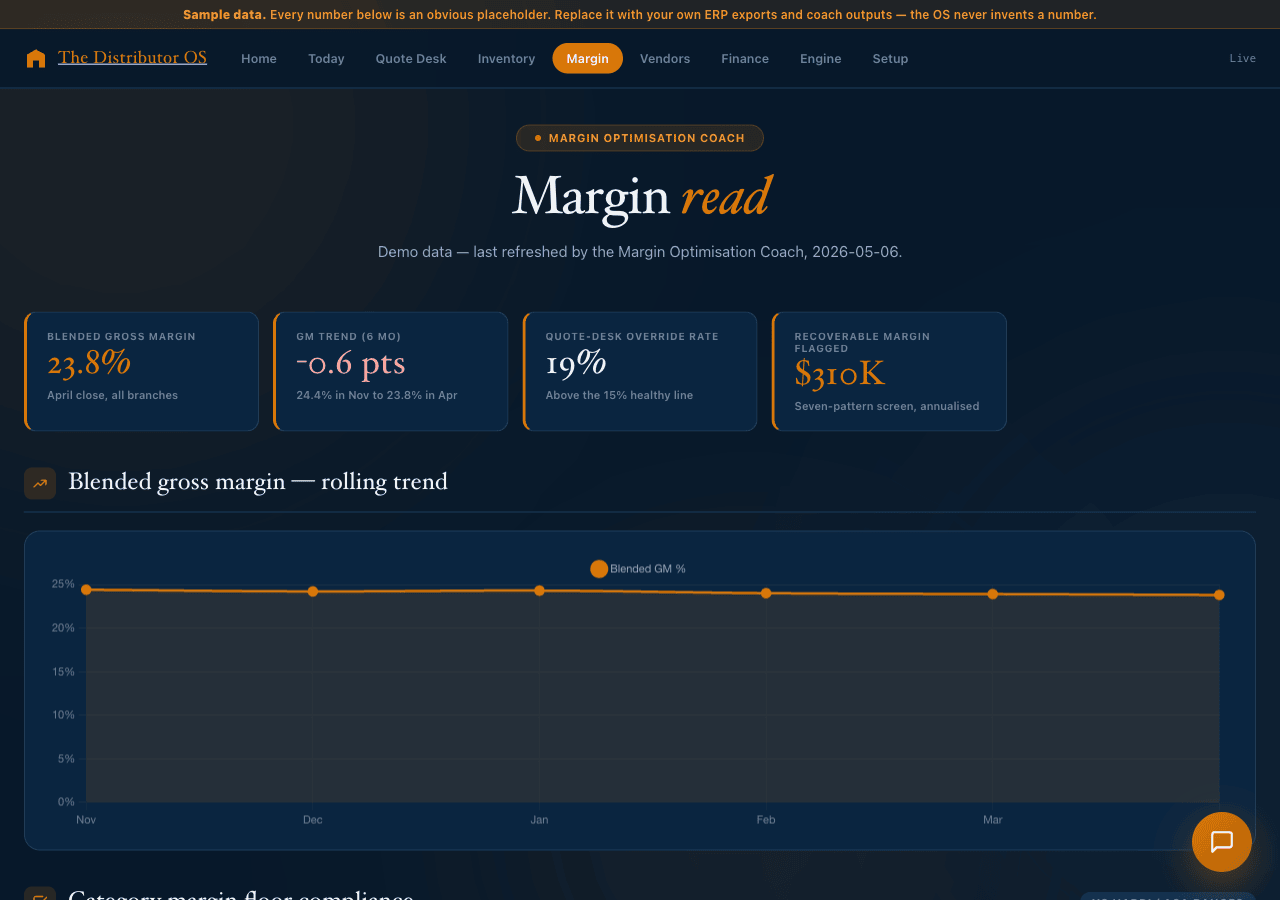
The five-section monthly margin review dashboard — branch GM trend, category floor compliance, quote-desk exceptions, customer movers, and a lost-margin recovery action list.
Typical lift

2–5 margin points on targeted categories. On $50M at 22% gross, 3 points is $1.5M a year.

Sample output from the Margin Optimisation Coach — a five-section monthly margin review dashboard

A sample monthly margin review the Margin Optimisation Coach produces — blended GM trend, category floor compliance, quote-desk override exceptions, customer movers, and a lost-margin recovery list.

Install: Customize → Plugins → tenexity/cowork-distributor-plugins → Margin Optimisation Coach → +

Inside sales + counter sales

Quote Desk Coach.

For the rep mid-call with a contractor waiting. Paste an RFQ and the coach drafts the quote — margin checked against your floor, substitutions surfaced, customer-tier pricing applied, follow-up cadence set. The rep still makes the call; the coach removes the 50 minutes of lookup around it.

Triggers on
"draft a quote," "respond to this RFQ," "price this for [customer]," "what's the margin on this," "should we substitute," "check this quote before I send it," "lost the [customer] job."
Surfaces
Multi-line RFQ responses, substitution decisions with margin and lead-time math, customer-tier pricing application, margin guardrails, freight inclusion, lead-time messaging, follow-up cadence, lost-quote diagnosis.
Needs from you
The RFQ or SKU list, plus your current cost and customer-tier pricing for those SKUs, pasted from your ERP. The coach won't invent a price — real numbers in, real quote out.
Produces
A drafted multi-line quote plus the cover email in your customer voice.
Typical impact

60–70% reduction in quote drafting time.

Image placeholder
Sample output from the Quote Desk Coach — a screenshot of the artifact this coach produces.

Install: Customize → Plugins → tenexity/cowork-distributor-plugins → Quote Desk Coach → +
Branch managers

Branch Operations Coach.

The operating rhythm of a branch, in one place. Paste a fill-rate report, a back-order list, or a branch P&L and the coach tells you what to look at, what the math means, and what to do about it today.

Triggers on
"morning huddle prep," "check fill rate," "cycle count plan," "back-order triage," "review branch P&L," "vendor allocation update," "seasonal stock plan," "freight claim."
Surfaces
Daily counter pulse, fill-rate computation and triage, A-B-C cycle-count rotation, back-order resolution (expedite vs transfer vs substitute vs delay), branch P&L reading, inter-branch transfer initiation, vendor-allocation response, huddle agenda design.
Needs from you
Whatever the day calls for — a fill-rate report, a back-order list, an inventory export, or a branch P&L. One paste per workflow; the coach reads what you give it.
Produces
A branch review — fill rate, back-order triage, and the day's action list for the manager to run.
Typical impact

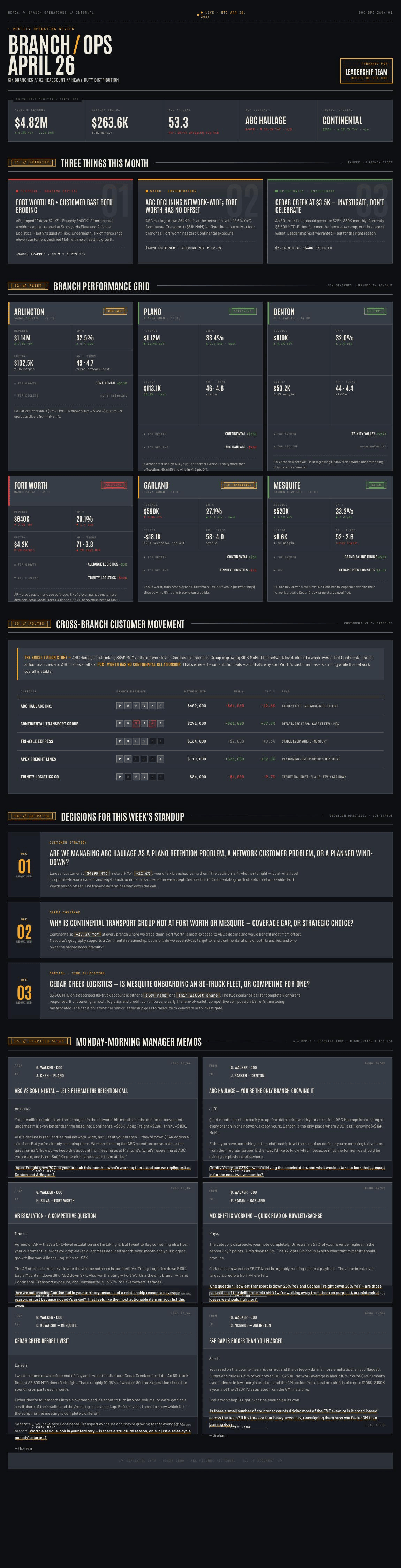
3–5 point fill-rate improvement, sharper daily operating rhythm.

Sample output from the Branch Operations Coach — a branch operating review with fill rate, back-order triage, and the day's action list

A sample branch review the Branch Operations Coach produces — fill rate, back-order triage, and the day's action list for the branch manager to run.

Install: Customize → Plugins → tenexity/cowork-distributor-plugins → Branch Operations Coach → +
Free coaches today · Tenexity AI apps next

The free coaches are methodology and drafting against pasted data. Tenexity AI apps (shipping ~every 45 days) run the same work against your live ERP, on a schedule, without paste. Start with the coaches; add the apps when the volume warrants it.

Your whole branch, in one screen

The Distributor OS.

The coaches and the rhythm do the work. The Distributor OS is where you see it. It's a single dashboard — one file, RESOURCES/DISTRIBUTOR-OS/distributor-os.html, that you open in CoWork — and it pulls the whole branch into eight tabs behind a real navigation bar. Not a stack of pinned chat outputs. An app.

7:40 on a Tuesday. The GM opens one file. The Home tab already lists today's three highest-leverage moves, branch performance against the quarter's target, and what the system did overnight — the Morning Briefing ran, the Dead-Stock Review flagged $340K crossing the twelve-month line. A click to Inventory: working capital tied up, dead stock ranked. A click to Margin: the GM trend and the categories under their floor. The whole business, in tabs, waiting before the first coffee.

The Distributor OS Home tab — today's three moves and branch performance
The Home tab. Today's three moves, branch performance, and the overnight output feed — one screen, before the first coffee.
The shell and the engine

On their own, a dead-stock snapshot, a margin read, and a vendor pulse each land in a different chat session or work-area folder — the picture of the branch never sits in one place. The Distributor OS is that one place. It doesn't replace the coaches; it's the cockpit their work feeds.

Eight tabs — and how it fills itself

One cockpit.

Home
Today's three moves, branch performance toward target, and the overnight output feed.
Today
Live calendar and unread inbox, pulled from your connectors.
Quote Desk
Open RFQs and quotes by stage, plus the work-area projects in flight.
Inventory
Dead stock, working capital tied up, reorder and seasonal alerts.
Margin · Vendors · Finance
Blended GM trend and floor compliance; vendor scorecards, rebate tracking and QBR cadence; branch P&L trend and AR aging.
Engine
The seven scheduled tasks and five coaches — with one-tap hand-off to run any of them. A Setup tab renames the app and relabels every tab for your company, applied live.
The Distributor OS Margin tab — GM trend, KPI tiles, category floor compliance
The Margin tab — refreshed by the Margin Optimisation Coach. Every tab works the same way: a coach or a scheduled task fills it.
How to make it yours

It ships in RESOURCES/DISTRIBUTOR-OS/ with obvious placeholder data — every number a dash, because the OS never invents one. The coaches and scheduled tasks fill it: each writes into a marked data region without touching the layout. Run the rhythm for a month and the OS becomes a live read on your branch that nobody had to build by hand. The full how-to — connectors, renaming, coach hand-off — is in the guide beside it, RESOURCES/DISTRIBUTOR-OS/README.md.

Dashboards the workspace builds for you

Live artifacts.

Everything so far — the rhythm, the coaches — produces answers inside a conversation. A live artifact is different. It's an interactive dashboard the workspace builds and saves for you: charts, tables, KPI tiles, running right inside CoWork, refreshing when you paste new data.

It's the view you'd otherwise build in Excel or Power BI — except you don't build it, you don't maintain it, and you can ask it questions in plain language. No formulas that break when you add a branch. No BI license, no IT ticket, no data-connection project. You paste an export, you get a dashboard.

How to build one

Two artifacts are ready to use today. The build prompt for each lives at tenexity.ai/distributor-cowork-os — the prompts are long, so they're hosted rather than printed here. Open the page, copy the prompt, paste it into a CoWork session along with your data. The dashboard builds itself in a couple of minutes and registers as a live artifact you can reopen any time.

A live artifact is the moment the workspace stops feeling like AI chat and starts feeling like a system you run the business on.
Replaces the hand-built Excel margin one-pager

Margin Assessment dashboard.

What it replaces: the margin one-pager somebody hand-builds in Excel before every monthly review — the workbook with formulas that break when a branch is added, the file three people each have a slightly different copy of.

Paste an ERP margin export and the dashboard builds the full five-section monthly margin review: branch GM trend with the outlier branch flagged, category floor compliance against HARDI/ASA ranges, a quote-desk exception summary, customer-tier margin movers, and a lost-margin recovery action list. Next month, paste the new export — it refreshes. Print-friendly, so it doubles as the one-pager the margin review meeting runs on.

The Margin Assessment dashboard — branch GM trend, KPI tiles, and category floor compliance
The Margin Assessment dashboard, built from a pasted margin export. Refreshes when you paste next month's.

Build it: open tenexity.ai/distributor-cowork-os/margin-assessment, copy the prompt, paste it into CoWork with your margin export.

Replaces "last year plus 5%"

Demand Planning dashboard.

What it replaces: the demand spreadsheet nobody fully trusts, and the forecast that's really just "last year plus 5%."

Paste a 24-month sales-by-category export and the dashboard builds a seasonal forecast — a damped model (recommended, growth decelerates over the horizon) and a linear model (aggressive, trend held flat), with a toggle that re-renders every dollar number on the page.

It carries KPI tiles for the trailing and forward 90 days, a 24-month growth ranking, a gross-margin trend strip, stockout-risk and working-capital-risk callouts, and a chat-with-data box you can ask "what's my exposure on refrigerant next quarter" in plain language. Every forecast carries a confidence band — categories with short history are flagged, not hidden.

Image placeholder
The Demand Planning dashboard — seasonal forecast, KPI tiles, and risk callouts. (Margin Assessment above shows the format.)

Build it: open tenexity.ai/distributor-cowork-os/demand-planning, copy the prompt, paste it into CoWork with your 24-month sales export.

These are starting points, not the limit

The two dashboards here are tested and ready — and they're a demonstration. Once you've seen a live artifact, you can ask CoWork to build others: an AR-aging dashboard, a vendor-scorecard view, a top-25-customer tracker. Describe the dashboard you want and the data you'll feed it; the workspace builds it. The two hosted prompts are the proof, not the ceiling.

The guides that take you further

Reference material.

The First Week Guide gets you to real output in five days. The system's depth shows up after that — and two guides in RESOURCES/GUIDES/ are the ones to read once you're past the first week. Both were written specifically for CoWork for Distributors, in the same trade voice as everything else. Neither is generic AI advice.

The Prompting Cookbook

This booklet teaches you to run the system. The Cookbook teaches you to drive it.

It opens with five principles that change how you work with AI — describe the destination, not the journey; front-load the context Claude can't guess; push back and iterate instead of accepting the first draft; make Claude think harder on the calls that matter (the "Sceptic's Chair" move for pressure-testing a vendor email before you send it, the "Confidence Check" for anything with real-money consequences like a rebate claim); and build reusable systems instead of one-off prompts.

Then it gives you 15 distributor-specific starter prompts in three tiers. Tier 1 works in your first ten minutes with nothing but your About Me files filled in. Tier 2 comes alive once your email and calendar connectors are live. Tier 3 shows the whole system working — a monthly dead-stock run that creates its own project folder, a rebate-claim review, a scheduled Monday briefing.

Every prompt is wired to the scaffold — your templates, your work areas, your company writing rules, your user voice overrides, real vendors like Carrier and Bradford White. It's the companion to the First Week Guide: the Guide walks you through five wins by hand; the Cookbook is the reference you keep open for the sixth, the tenth, the hundredth.

The guides that take you further

Working well, over time.

The Good Practices Guide

Not the features — that's this booklet. Not the prompts — that's the Cookbook. This is the practical wisdom for working well with the system over months. It answers the questions you actually hit in week two and beyond.

When to start a fresh session versus continuing the one you're in. How to structure a complex request so Claude doesn't hand you a five-page QBR that misses the point. What makes a memory entry worth keeping, and what's just noise. The art of feedback — how one well-phrased correction, logged once, permanently changes how Claude writes for you. That's the actual mechanism behind "the system gets sharper the more you use it." Plus file hygiene, and a plain-language "when Claude gets stuck" section for the days it loops or goes generic.

It's written around CoWork for Distributors specifically — your six work areas, the COMPANY and USER layers, the System Review, the Personal Assistant. One section is worth reading before you reorganise anything: why the scaffold deliberately uses one folder instead of CoWork's native Projects feature. Split your work into separate Projects and Claude loses access to your voice and writing rules — the guide explains the trap before you fall into it.

Start with these two

The same RESOURCES/GUIDES/ folder also holds the Commands & Scheduled Tasks guide, the Admin-PA guide, and the Specialist Sub-Agent Builder guide. Browse those when a specific need comes up — but the Cookbook and the Good Practices Guide are the two that pay off for every user, in the first month.

A head start on every document

The templates.

Nobody wants to build a vendor scorecard from a blank page. The RESOURCES/TEMPLATES/ folder is fifteen distributor documents already structured for you — the format worked out, the sections in the right order, the trade vocabulary baked in. You bring the numbers; the shape is done.

Fifteen documents, already shaped

The customer quote · the QBR one-pager · the vendor scorecard · the price-increase letter · the dead-stock (SKU rationalisation) analysis · the AR collection matrix · the top-25 account tracker · the weekly review · the 90-day priorities plan · the decision document · the branch dashboard · the project brief — and more.

Here's the part that matters: you don't have to go dig them out. Ask Claude for a document it has a template for — "draft a QBR one-pager for Tarheel," "build me a vendor scorecard for Carrier," "set up a price-increase letter for the Charlotte Pipe bump" — and it pulls the matching template automatically, fills it with your data, and writes it in your voice. Every output starts structured and consistent instead of improvised. The template is the floor, not the ceiling.

Worth two minutes

Open RESOURCES/TEMPLATES/ once and see what's in there. The next time you're staring at a blank document with a deadline, you'll remember the head start was sitting in your workspace the whole time — and the hour of formatting starts already half-done.

If you have a team

Setting up for multiple employees.

If you're a solo operator, skip this section. If more than one person will use this scaffold, here's how the multi-employee model works.

The two-layer model

The ABOUT ME/ folder has two layers:

The four files that describe the business — branches, ERP, vendors, voice rules, tools. Same content for every employee. Populated once by the admin.

USER

The four files that describe you — your role, your voice, your priorities, your memory. Different content per employee. Each employee populates their own.

The recommended setup pattern

01
Admin downloads the scaffold first. One designated person (GM, owner, ops manager, IT lead) runs the company-level setup.
02
Admin places the scaffold in cloud-synced storage. OneDrive, Google Drive, SharePoint, Dropbox. Whatever your company already uses. The folder must be readable by every employee.
03
Admin runs Setup Company. Says set up the company in their CoWork session. The populated ABOUT ME/COMPANY/ files now live in the shared folder.
04
Each employee points their Claude desktop app at the shared folder. Same workspace path on every machine.
05
Each employee runs Setup User. Says set up my profile. About 5 minutes per person.
Privacy

Anything tagged [private] in an employee's captain's log or memory file stays private to that employee — the System Review skill explicitly skips [private] entries when producing company-visible reports.

When something doesn't work

Troubleshooting.

Most install problems fall into one of five categories. Here's what to try.

The Tenexity marketplace doesn't show up

Double-check the identifier is exactly tenexity/cowork-distributor-plugins — no https://, no trailing slash. If correct and still empty, your Claude desktop app may be on an older build — update from claude.com/download.

Plugin installed but skills don't appear

Fully quit the Claude desktop app (Cmd+Q on Mac, not just close the window) and reopen. Skills register on app startup.

"No workspace folder is connected" when running a scheduled task

The workspace folder pointer didn't persist between sessions. Re-open the Claude desktop app, go to settings, re-select CoWork-for-Distributors/ as the workspace, fully quit (Cmd+Q), and reopen.

Claude doesn't seem to know your business

The Global Instructions probably aren't set. Go back to Part 1 Step 2 and paste 2-CLAUDE.md into the Global Instructions field in the Claude desktop app's settings. Also confirm ABOUT ME/COMPANY/company-profile.md has been populated — it ships as a template; Setup Company writes the real content.

The marketplace flow won't work (firewall, offline machine, audit policy)

Use the offline fallback: the core skills also ship as loose .skill files in RESOURCES/SKILLS-TO-INSTALL/ — onboarding, First Week Guide, System Review, and Knowledge Base Health Check. Click Customize → Personal Skills → + and pick each one manually.
When in doubt

Say do a system health check in chat. Claude reads everything in your workspace and tells you what's missing or misconfigured, in plain language.

Optional · if you'd rather have it set up for you

The migration package.

Everything in this booklet is free, and it stays free — you can install all of it, run all of it, train your team on it, and never talk to Tenexity again. The booklet you're holding is the whole method. And when you're ready for what runs without the copy & paste, the Tenexity AI apps are how this scales into a powerful next-generation AI platform.

The first month is the hard part. The setup conversation goes deeper when someone who's done it fifty times asks the questions. The ERP export config lands cleaner when someone knows what an Eclipse / P21 / Infor margin export looks like before you paste it. The rhythm works better tuned to your cadence than left on the defaults. If you'd rather not spend that month figuring it out yourself, the migration package is the done-for-you path.

What's in it

ERP
ERP-clean from day one. Your actual Eclipse / P21 / Infor / other export formats configured, with the format quirks known and handled. No generic templates. No week-two "why is this wrong."
Business
Configured to your business. Your product categories, customer tiers, branch list, top-25 accounts, company voice, and role map encoded into the coaches before the first session. Day one feels like the system already knew your operation.
90 days
Pattern-spotting, not just setup. Three working sessions across the first quarter where Tenexity reviews your actual outputs and tunes what's drifting. The part you cannot get from a self-install.
Owned
Permanent and owned. One fee, no subscription dependency. You own the platform forever; the monthly support is genuinely optional after the first year.
What it replaces

A 3-to-6-month boutique-consultancy engagement at $50K–$150K. A Pricefx- or Zilliant-style implementation starting at $80K. Or — most common — a 12-month "we'll get to it" period where the value in this booklet just never quite happens.

What it costs · what it's worth

What it costs.

$12,500 one-time — covers the first two branches

Each branch beyond the first two adds $2,500 one-time. Five branches: $12,500 + (3 × $2,500) = $20,000. Ten branches: $12,500 + (8 × $2,500) = $32,500. That's the entire setup cost.

$350 per branch / month — platform support

Covers every user in the branch — not per-seat. Coach updates, ERP-schema maintenance, a quarterly tune-up call, priority support. The first three months are included with the migration package.

The $12,500 gets your version dialed in. The monthly support is what makes the new rhythm stick — we recommend keeping it active the first 6–12 months while the habit forms. After that, keep it or drop it. The platform is yours either way.

What it's worth

For a $50M-revenue, three-branch distributor running every cadence, the conservative first-year estimate is roughly $3.9M of recurring annual lift plus $1.2M–$2.7M of one-time working capital freed — math on the "What you'll get" spread near the front. Against a $12,500 migration plus a year of support, the return is the easy part of the decision.

Questions distributors ask

Do I need this? No. The free package is genuinely complete. The migration buys speed and certainty: it compresses the first 90 days and tunes the setup to your ERP and your roles.

What does the first 90 days look like? Week 1: facilitated setup and ERP config. Weeks 2–4: team training, scheduled-task tuning, first real outputs. Weeks 5–12: three working sessions, ongoing support, then handoff. By day 90 you own it.

Talk it through

Book 20 minutes with Graham: calendly.com/graham-tenexity/quick-chat. No pitch deck — a conversation about whether it's a fit.

The scaffold is the foundation · the apps are how it scales

What this becomes.

The scaffold is the foundation. The Tenexity apps are the operating layer that runs on top of it.

The scaffold does the work by paste

A controller pastes the margin export and gets a review. A purchaser pastes the rebate program terms and gets a reconciliation. A branch manager pastes the inventory file and gets a dead-stock list. The human is in the loop on every cycle — that's the design, and for the first year it's the right design.

The Tenexity apps do the same work by connection

Order entry without paste — the order is in your ERP, tracked, exception-handled, reconciled. AR automation that drafts the email, sends it, logs the response, escalates, and syncs with the ledger. AP automation that triages the invoice, matches it to the PO, flags the variance, and routes it for approval. Contract analyzer that ingests the redline, tracks the negotiation, and alerts on the auto-renew clause two months before it triggers. Wallet-share analysis that monitors the share-of-wallet pattern across your top accounts and flags drift the week it starts. And more — one new app approximately every 45 days.

See the current lineup

Visit tenexity.ai for what's available now, or email cowork@tenexity.ai for a conversation about which one matches what your operation is feeling next.

The same workspace, the same voice, the same data — running at scale

Distributors who run the scaffold for a year don't outgrow it. They graduate from it. The apps are the next step on the same path, in the same room, with the same coaches you already trained. AI embedded in every part of how distribution gets run — purpose-built for wholesale, not retrofitted from a generic tool.

You're set up.
Now the compounding starts.

After a month of active use, the system knows your top 25 customers by name, your top 20 vendors and their QBR cadence, which SKUs are dead weight, and how your voice shifts between writing to a contractor and writing to a manufacturer rep.

After three months, the patterns compound. The morning briefing arrives every weekday with what needs your attention. The AR triage runs in 45 minutes instead of three hours. The vendor QBR prep takes 90 minutes instead of six. The dead-stock review actually happens on the first Tuesday of every month, because it's on the schedule and the system surfaces what to act on.

That's the whole point. Real work, in your voice, with your data, every day. No subscription, no login. Yours to keep.

Get help. Or go further.

EMAIL
cowork@tenexity.ai — A human reads every message and usually replies the same day.
CALL
calendly.com/graham-tenexity/quick-chat — Twenty minutes with Graham. No pitch decks, no pressure.
DOCS
tenexity.ai/distributors — Download the scaffold, read the guides, see what others are doing.
Tenexity builds AI for wholesale distribution Booklet 2026.06.01 · For scaffold v2.6